Getting Started with the TeamTeacher Connector
If you've used Phone-a-Friend in TeamTeacher, you already know how powerful it is when AI agents collaborate. Iris can phone Minerva for IB expertise, or consult Diane for standards alignment - all within your conversation.
The experimental new TeamTeacher Connector takes that idea further: now any AI app can "phone" your TeamTeacher agents. 📞
What TeamTeacher Connector Does
When you connect TeamTeacher to Claude, ChatGPT, or another compatible AI app, your agents become tools those apps can call on. This means:
- Your agents are available everywhere - Minerva, Diane, Barbara, and your custom agents appear as capabilities in your other AI tools
- Full power travels with them - Web search, knowledge bases, your documents, note-taking. Everything your agents can do in TeamTeacher, they can do when called from elsewhere
- Everything syncs back - Conversations your agents have appear in your TeamTeacher history automatically
The Technology (For the Curious)
TeamTeacher Connector is built on the Model Context Protocol (MCP) - an open standard for AI interoperability.
Think of it like USB for AI apps. Just as USB created a universal way to connect any device to any computer, MCP creates a universal way for AI applications to share capabilities. It's supported by Anthropic (Claude), OpenAI (ChatGPT), and others - meaning your TeamTeacher connection is future-proof.
Scenarios Where This Shines ✨
The Complete Round-Trip
You're in ChatGPT planning a unit on climate change. Partway through, you want to make sure everything aligns with IB Middle Years Programme (MYP) Science criteria.
You ask ChatGPT: "Can you have Minerva check this unit plan for Criterion D alignment?"
Behind the scenes:
- ChatGPT calls your Minerva agent via TeamTeacher Connector
- Minerva receives the request in TeamTeacher
- She searches her IB knowledge base for Criterion D descriptors
- She reviews your plan against those descriptors
- She sends her analysis back through the connector
- The alignment feedback appears right in ChatGPT
You never left ChatGPT. But Minerva did all her work in TeamTeacher - and that conversation is now saved in your TeamTeacher history too.
Research + Your Documents
You're in Claude researching project-based learning approaches. You remember you saved some great resources on this topic in TeamTeacher.
You ask Claude: "Can you have my custom agent search my document library for PBL resources?"
Your custom agent searches your saved documents, pulls relevant excerpts, and responds back to Claude with what it found. You can ask follow-up questions, and your agent can save new synthesis as a document for later.
Multi-Agent Expertise
You're using Claude to develop a lesson that needs to work across multiple contexts.
You ask Claude: "Ask Diane about Texas TEKS for 5th grade math fractions, then ask Minerva how IB Middle Years Programme (MYP) Grade 5 approaches the same concepts."
Claude orchestrates calls to both agents. Each brings their curriculum expertise. You get a combined view of how different frameworks approach the topic - all in one conversation.
What Stays in Sync
Every time an AI app calls one of your TeamTeacher agents:
- A conversation is created in your TeamTeacher history
- Documents your agents create or access are saved
- Notes your agents add are preserved
- A "Continue in TeamTeacher" link is included in responses
This means you can start exploring an idea in ChatGPT, then switch to TeamTeacher's full interface to continue developing it. Your context travels with you.
Setting Up in Claude
Claude's Connectors feature is currently in beta and requires a paid Claude plan. The setup process and available features may change as the feature evolves.
Adding TeamTeacher to Claude takes about 30 seconds. Here's how:
Step 1: Open Settings
In Claude, open Settings using the menu or keyboard shortcut (⇧⌘, on Mac).

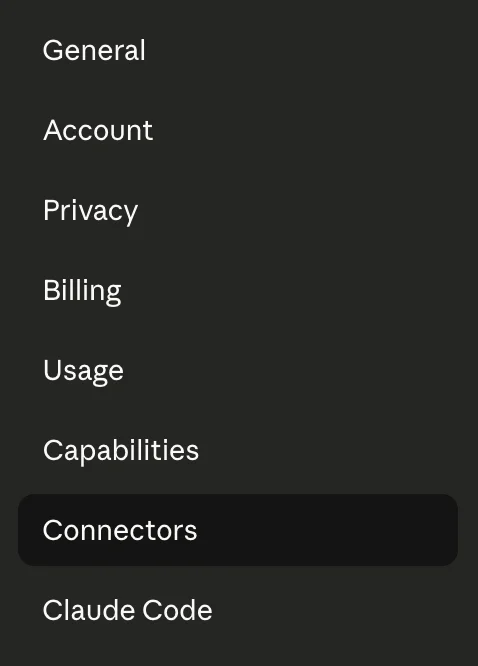
Step 2: Navigate to Connectors
In the Settings sidebar, click Connectors.
Step 3: Add Custom Connector
Click the Add custom connector button.

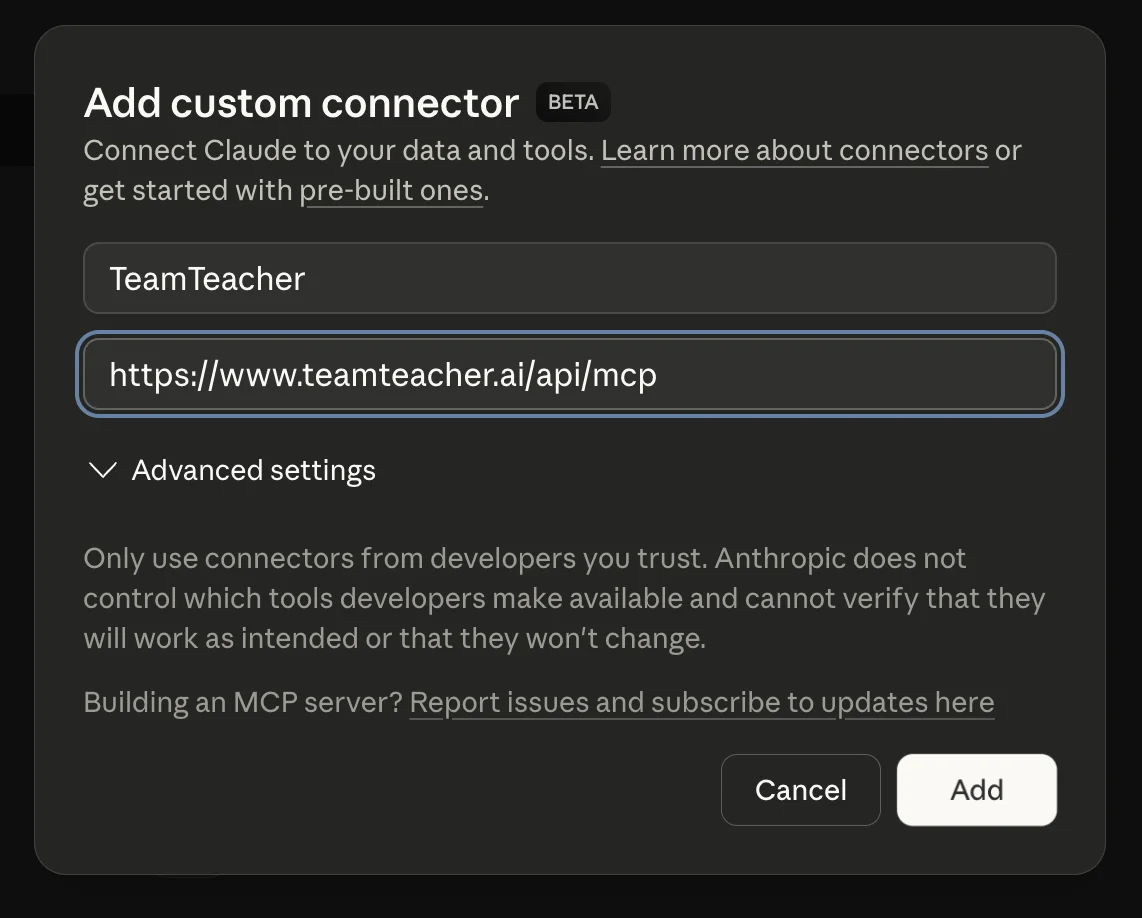
Step 4: Enter TeamTeacher Details
In the dialog, enter:
- Name:
TeamTeacher - URL:
https://www.teamteacher.ai/api/mcp
Then click Add.
Step 5: You're Connected
TeamTeacher now appears in your Connectors list. Claude can now call on your TeamTeacher agents.

Step 6: Configure Permissions (Optional)
Click Configure next to TeamTeacher to see all available tools and set permissions.
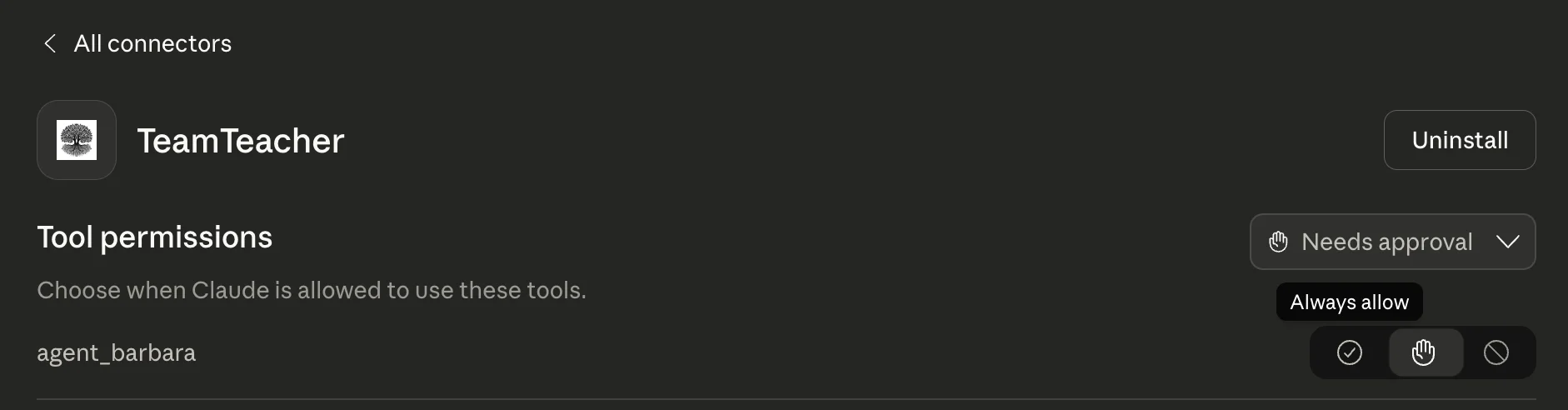
You'll see each agent listed (like agent_barbara, agent_minerva, etc.). For each tool, you can choose:
- Needs approval - Claude will ask before using this agent (default, recommended to start)
- Always allow - Claude can use this agent without asking
- Never allow - Block this agent from being used
Start with "Needs approval" so you can see when Claude calls your agents. Once you're comfortable, you can switch to "Always allow" for agents you use frequently.
Using TeamTeacher in Claude
Now that TeamTeacher is connected, here's how to use it in your conversations.
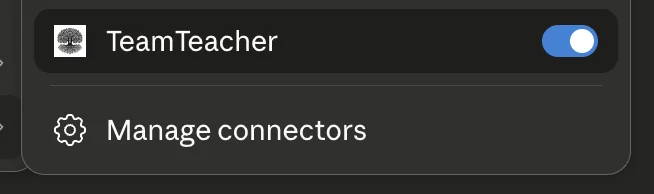
Enable TeamTeacher for a Conversation
In any Claude conversation, click the + button to add context.
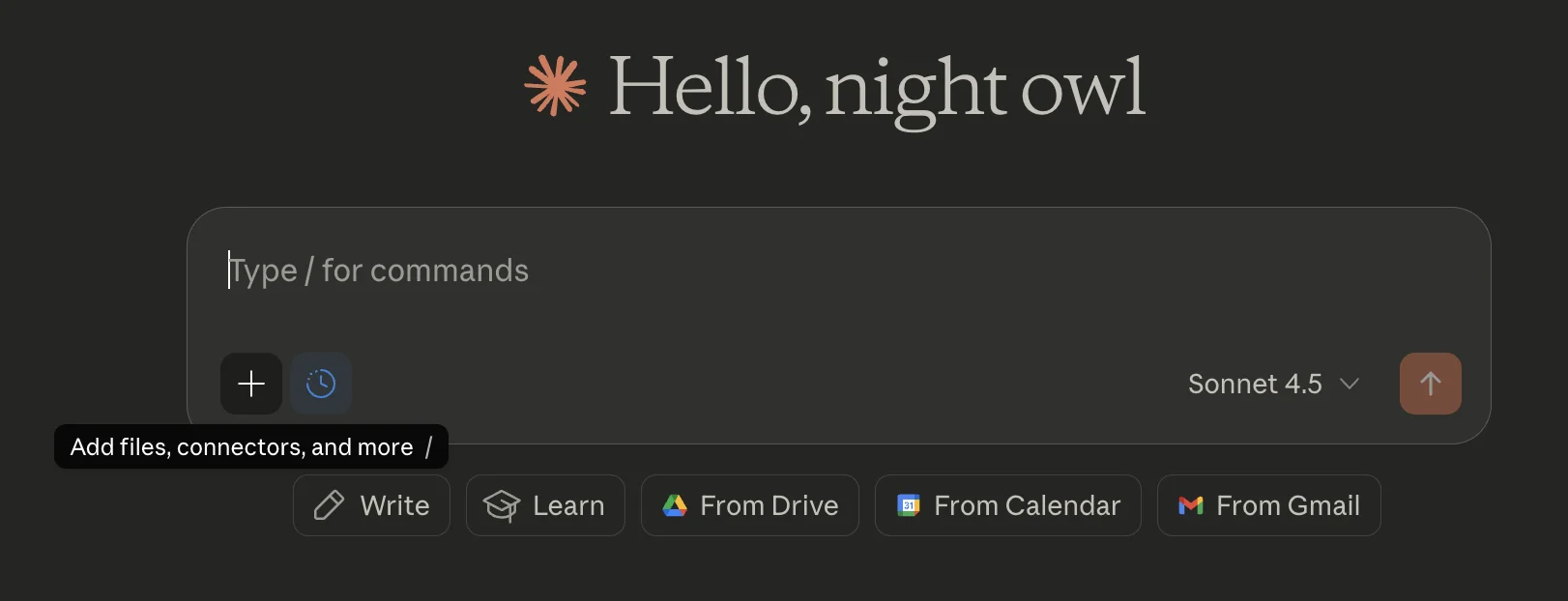
Select Connectors from the menu.

Toggle TeamTeacher on for this conversation.
Try It Out
Now you can ask Claude to use your TeamTeacher agents. For example:
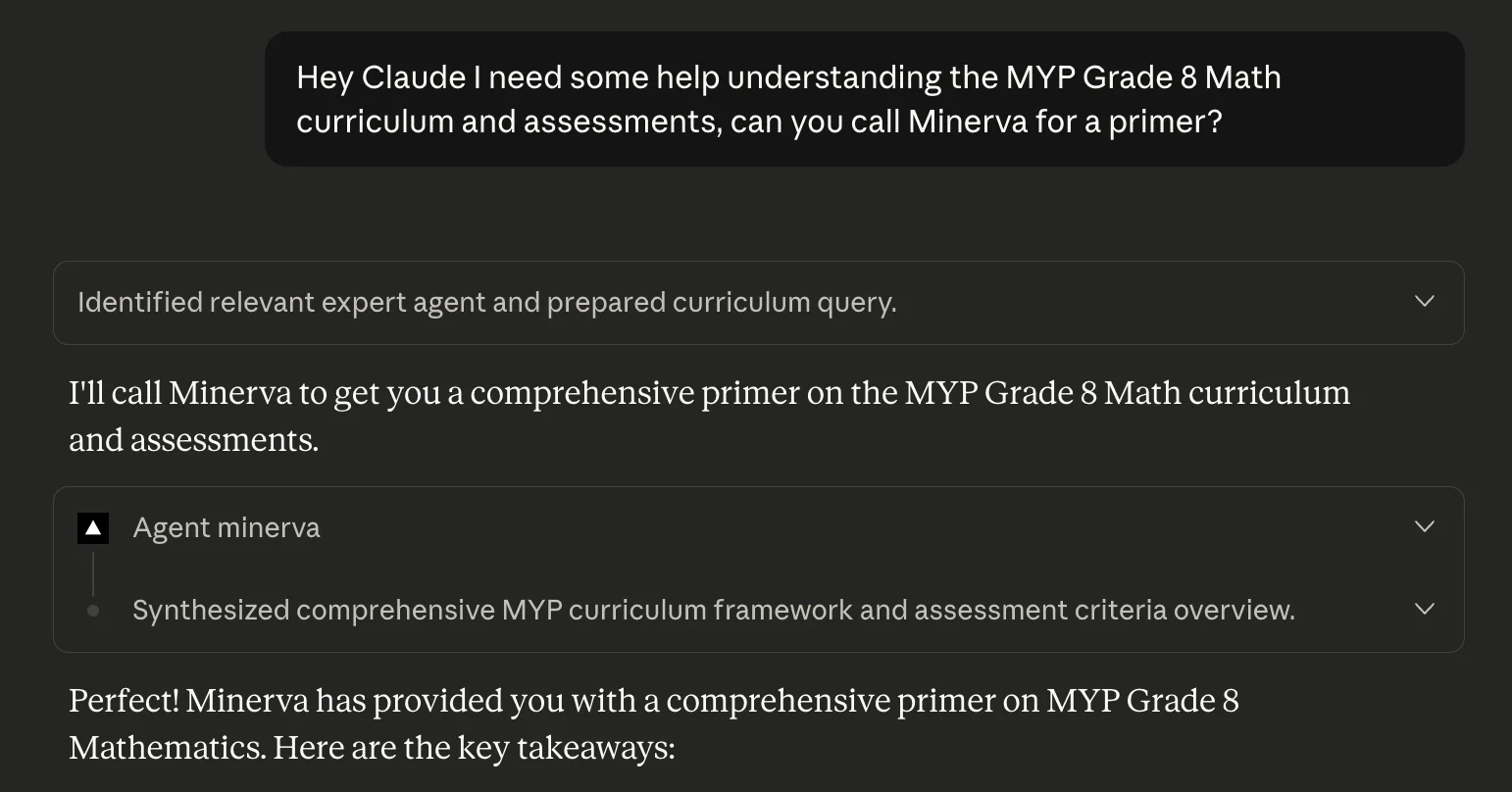
"Hey Claude, I need some help understanding the MYP Grade 8 Math curriculum and assessments, can you call Minerva for a primer?"
Claude will identify the right agent, call Minerva, and present her response:
Other things you can try:
- "Ask Minerva to review this lesson plan for IB alignment"
- "Have my custom agent search my documents for resources on fractions"
- "Ask Diane what Texas TEKS standards cover this topic"
Setting Up in ChatGPT
ChatGPT's Apps feature (MCP support) is currently in beta and requires both a paid ChatGPT plan and Developer mode to be enabled. The setup process and available features may change as the feature evolves.
Here's how to set it up:
Step 1: Enable Developer Mode
Go to Settings → Apps → scroll down to Advanced settings.

Toggle on Developer mode. This is a beta feature that allows custom MCP apps.

Note: Developer mode is required because TeamTeacher is a custom MCP server. Memory is disabled in Developer mode, so ChatGPT won't remember conversations across chats.
Step 2: Create the App
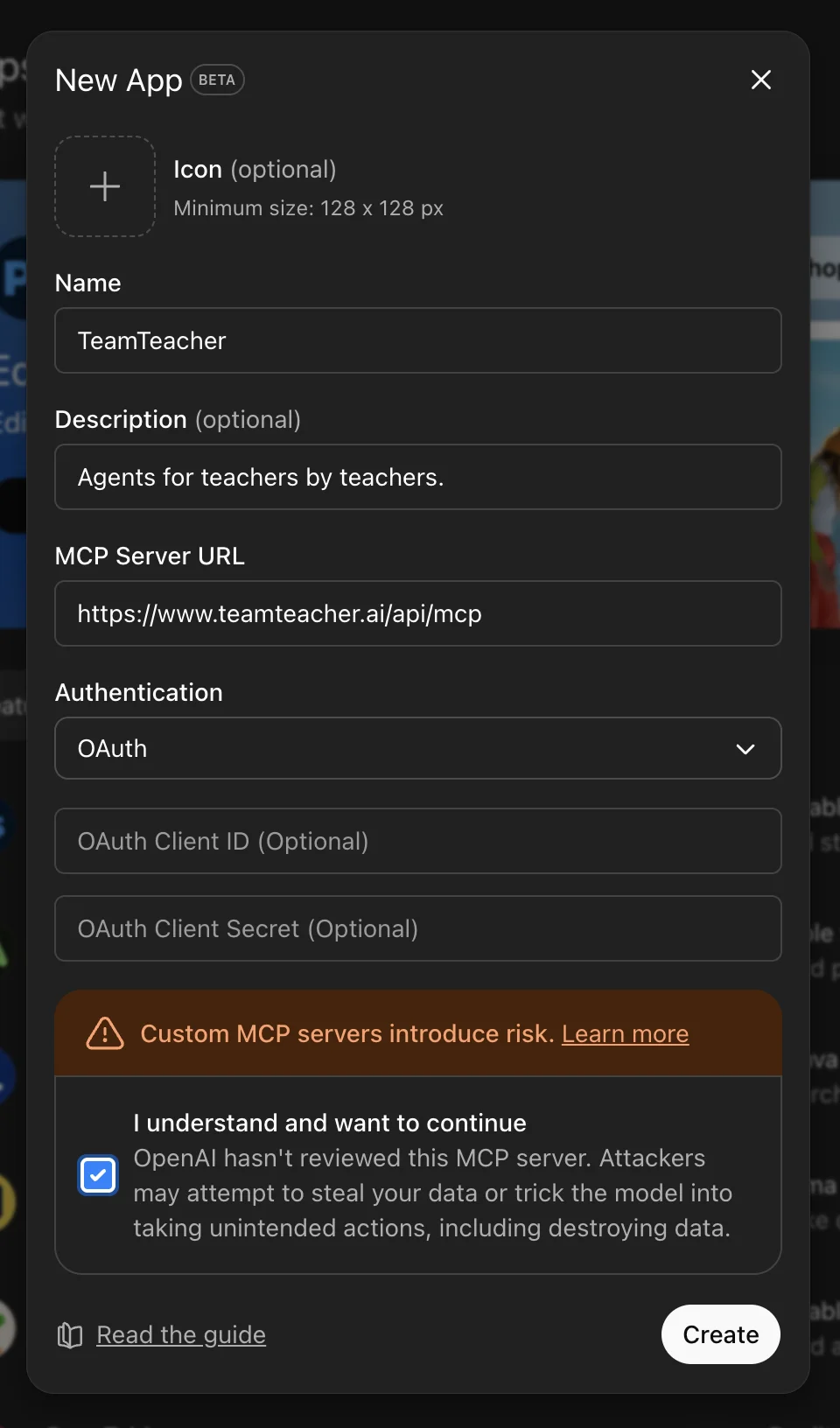
In the Apps settings, click Create app next to Advanced settings.
Fill in the following details:
- Name:
TeamTeacher - Description:
Agents for teachers by teachers. - MCP Server URL:
https://www.teamteacher.ai/api/mcp - Authentication:
OAuth
Check the acknowledgment box and click Create.
Step 3: You're Connected
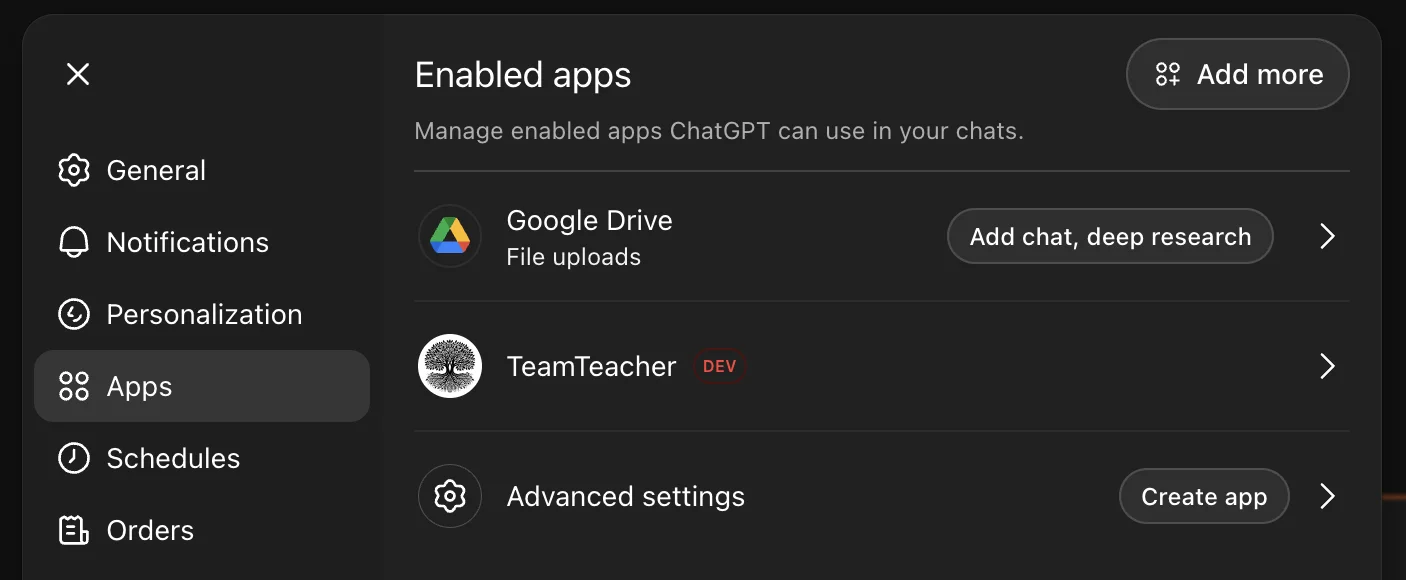
You'll see a confirmation that TeamTeacher is now connected.

TeamTeacher now appears in your Apps list with a DEV badge (indicating it's a custom developer app).
Step 4: View Available Agents (Optional)
Click on TeamTeacher to see connection details and the list of available agents.
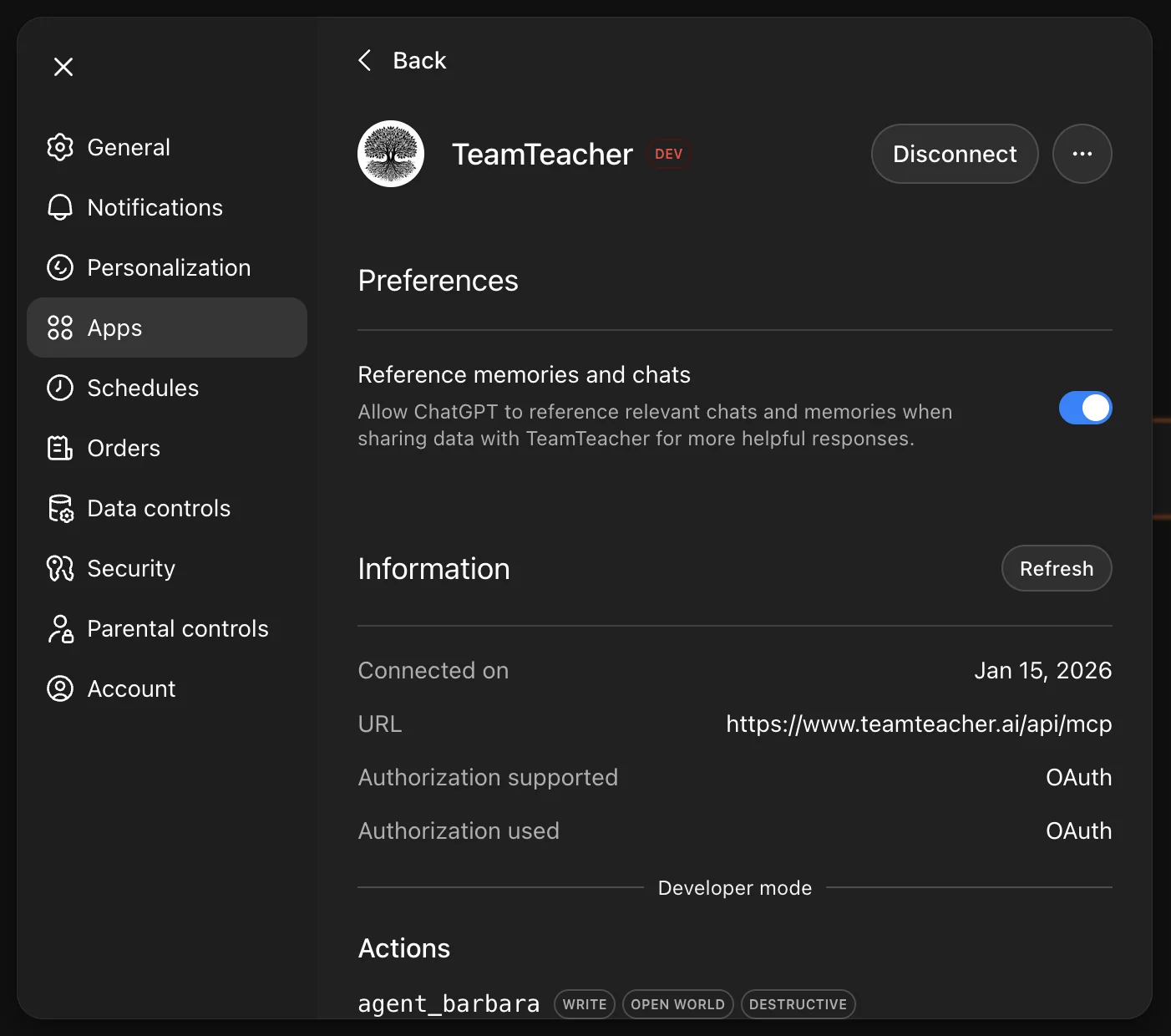
You'll see all your agents listed with their capabilities (like agent_minerva, agent_barbara, etc.).
Using TeamTeacher in ChatGPT
Now that TeamTeacher is set up, here's how to use it.
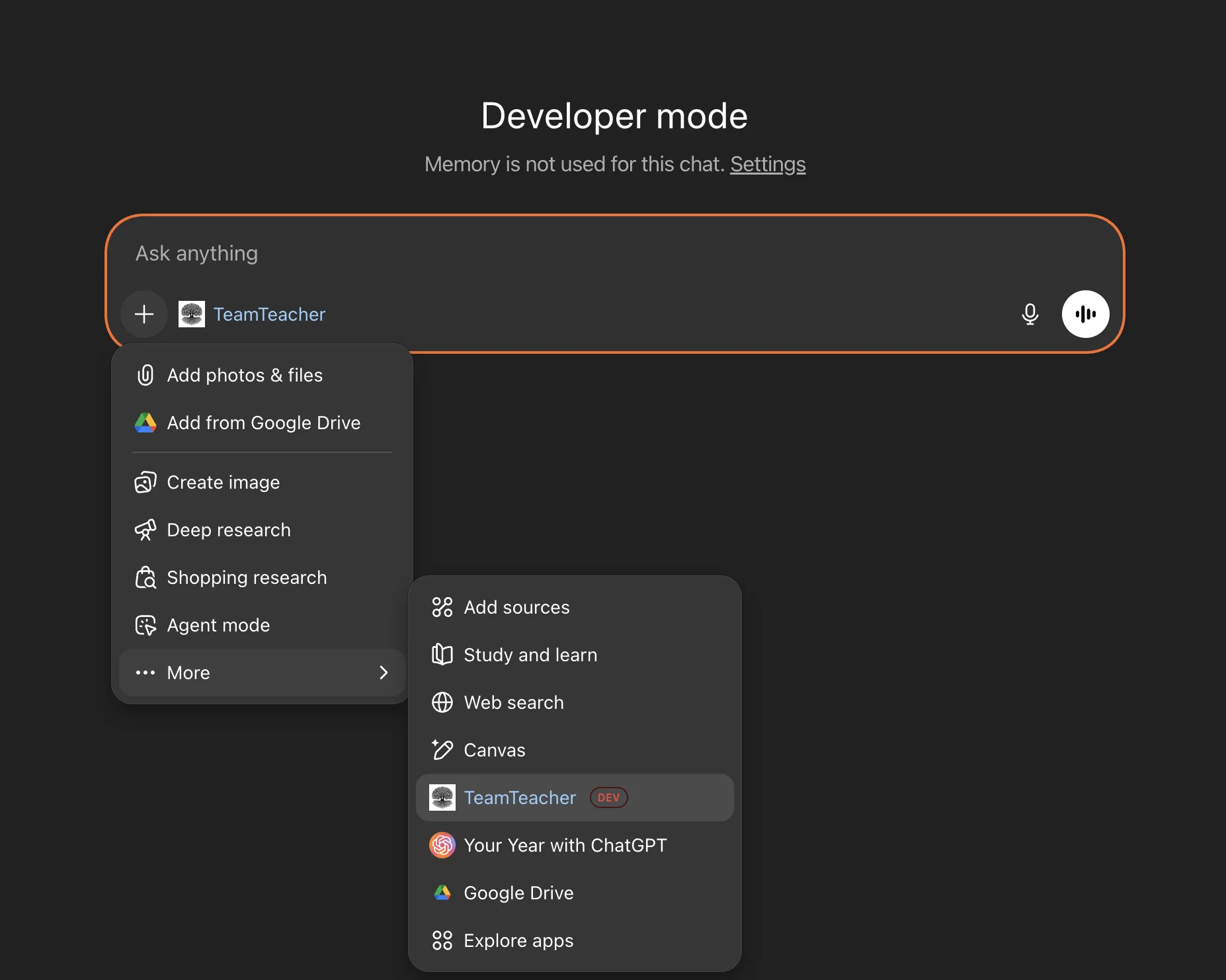
Enable TeamTeacher for a Chat
When in Developer mode, click the + button in a chat and select TeamTeacher from the menu.
Your First Request
Ask ChatGPT to use one of your TeamTeacher agents:
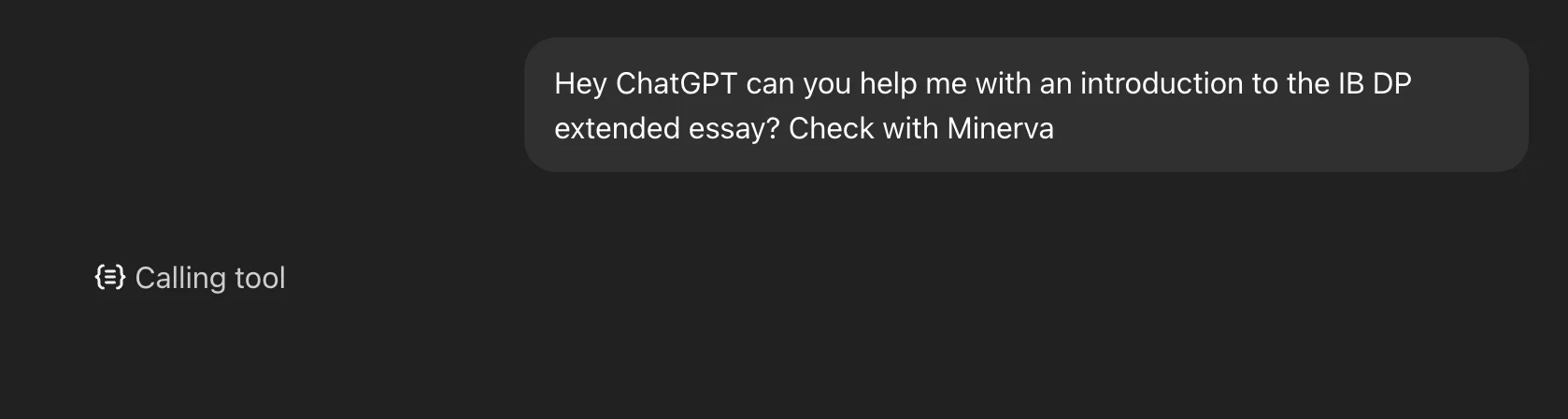
"Hey ChatGPT can you help me with an introduction to the IB Diploma Programme (DP) extended essay? Check with Minerva"
You'll see "Calling tool" as ChatGPT connects to Minerva.
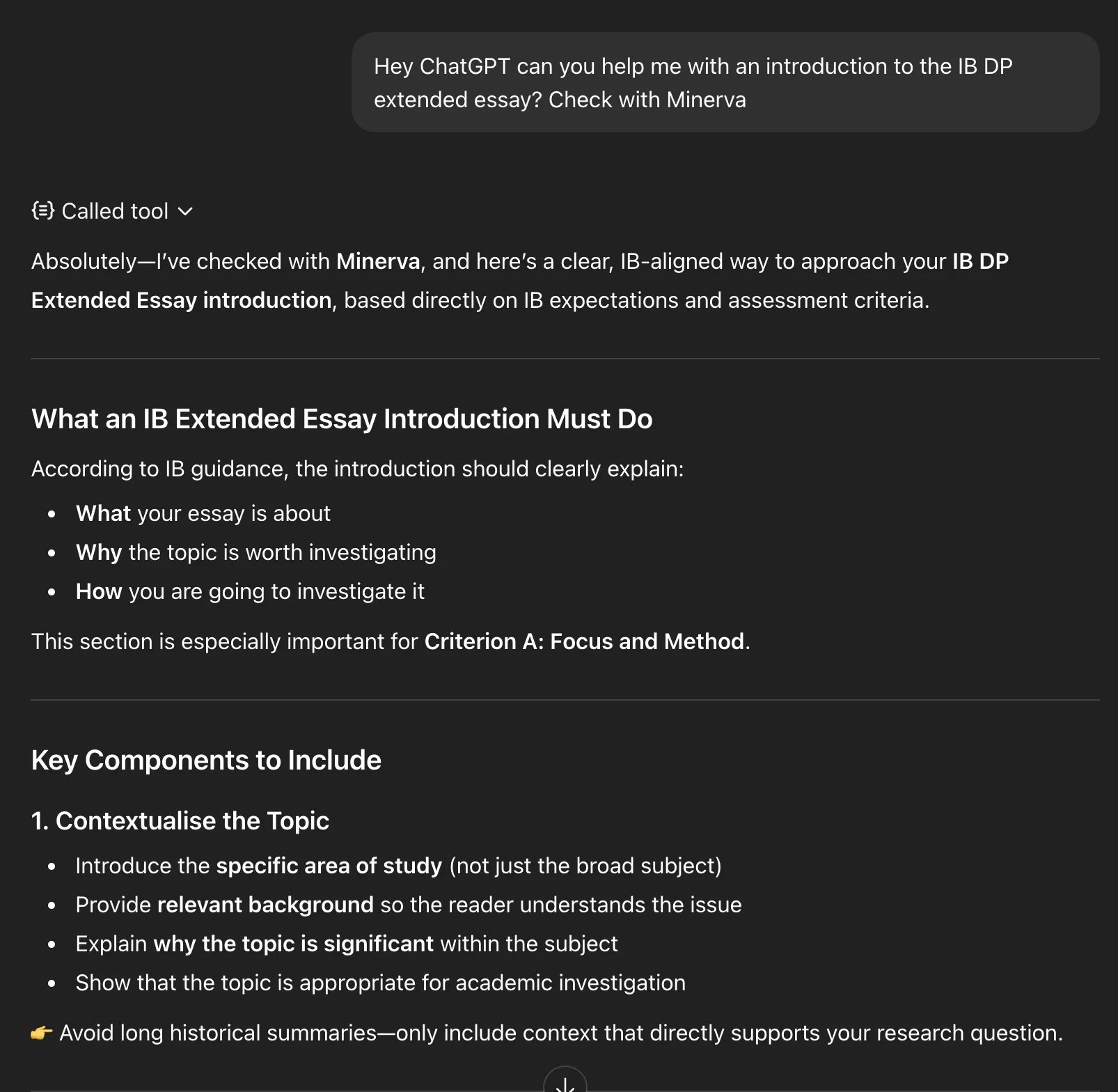
Minerva responds with IB-aligned guidance:
Other things you can try:
- "Ask Minerva to help me plan an IB Middle Years Programme (MYP) unit"
- "Have my custom agent search my documents"
- "Ask Diane about Texas TEKS standards"
See What's Being Shared
One of our core values is technical transparency. When ChatGPT calls a TeamTeacher agent, you can click "Called tool" to see exactly what data was sent and received.
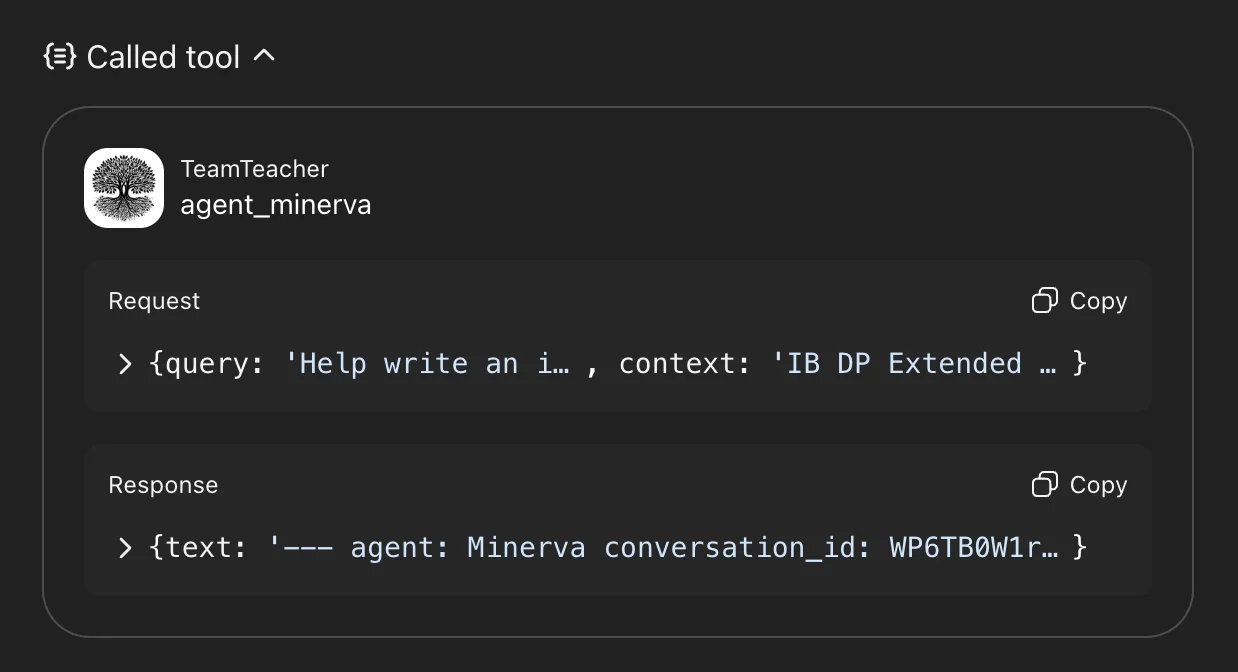
This shows:
- Request - The query and context sent to your agent
- Response - What the agent returned
Claude has similar transparency - you can expand tool calls to see what's being shared. If you're concerned about data sharing, you can disable memory in your Claude or ChatGPT settings, though this means conversations won't be remembered across chats.
Want to learn more about what's possible?