Context Management in Conversations
Tokens – the unit of measurement
Modern large language models - the AI innovation behind chatbots like ChatGPT, Claude, and Gemini - process text and other data as tokens. Everything that goes to the model is broken up into little chunks called tokens which the model represents with math.
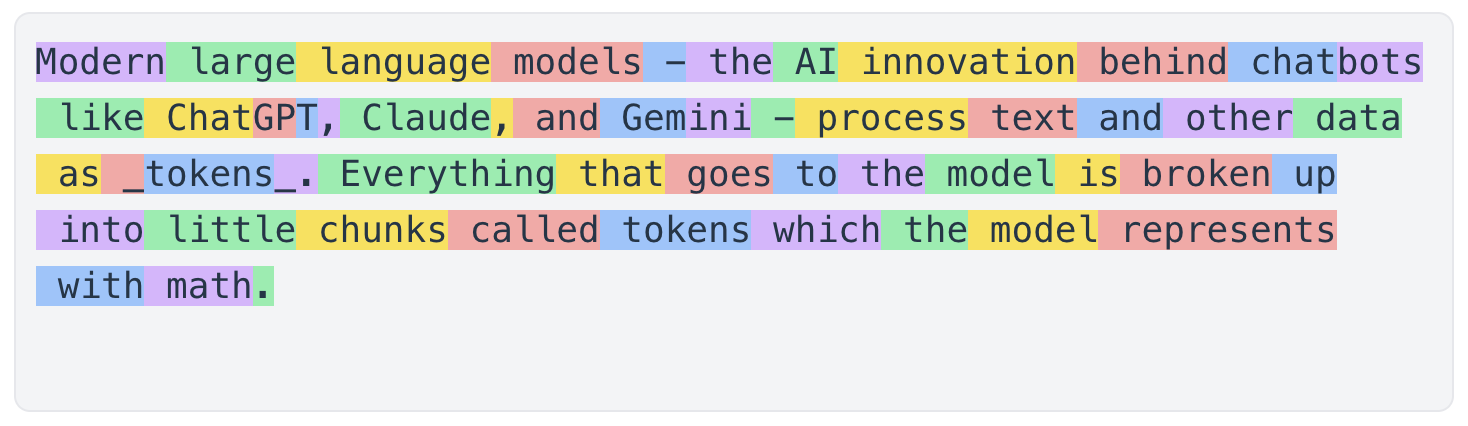
Think of tokens as the unit of measurement when working with AI.
Tokens are simple when working with plain text, but get more complicated and difficult to predict when you're working with files like images, PDFs, and other file formats. Both the text contents and any metadata and formatting information are broken down into tokens. You can keep an eye on the token counts for your messages right in the footer of each message on TeamTeacher.
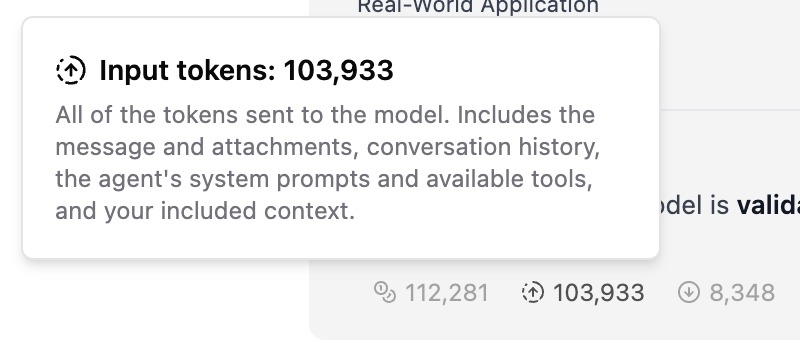
- Total tokens: all of the tokens in the context window for this message
- Input tokens: the tokens in the request
- Output tokens: the tokens in the response
Read on to understand why these token counts matter, how token counts change through a conversation, and how you can master token efficiency for better results.
The Context Window – the available space
Each AI large language model has a token count limit - a maximum number of tokens it can possibly process at one time. This is the limit to the context window.
Picture a context window like the top of a desk. The AI can see everything on the desk, and it can put things on the desk. Each time you send a message:
- the AI model gets a snapshot of what's on the desk (in the context window)
- the AI model has to be able to fit its response in open space on the desk
An overcrowded desk - or context window - can confuse the agent and limit its ability to respond meaningfully. If there's only a tiny space left on the desk, it will try to fit its response in that space. If there's a bunch of unrelated junk on the desk, it's going to read through that every time and get confused about what you really want it to do. The quality of the AI's outputs will differ widely depending on what's on the desk - what's in your context window.
Messages
All of the context - the information in the form of text, images, files, etc - sent to the agent is sent as a list of messages.
All of the messages are sent to the AI model each time you send a new message. This means your context window - the desk - keeps getting more and more full with each new message. This is maybe the most important thing you need to understand about the context window. If your conversation is getting long, try starting a new one: you can fork a conversation from an earlier message, summarize the existing conversation and create a new one from the summary, or just start fresh in the same folder.
System messages
The system messages are the messages you don't see, at least directly. System messages are constructed by the TeamTeacher code and include:
TeamTeacher & Agent Prompts
TeamTeacher provides some standard platform prompts as well as an agent-specific prompt as system messages. This is what gives the agent their personality and capabilities. You cannot modify this, though you can create your own Custom Agents.
User profile context
The agent can see your username and introduction. The agent CANNOT see your actual name or email address.
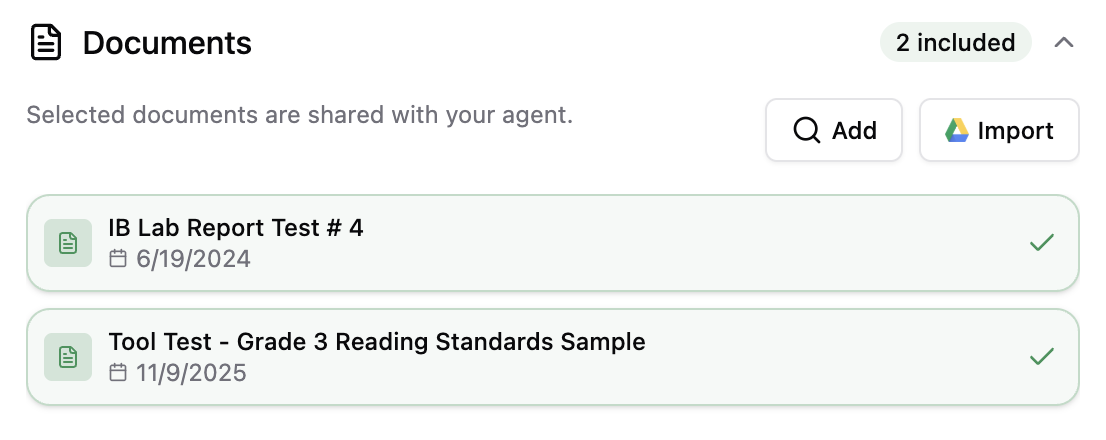
Conversation Documents
TeamTeacher Documents are optimized for AI and provide the best performance in terms of token efficiency and output quality. TeamTeacher uses Markdown format for minimal token usage and maximum compatibility.
Conversation Documents are kept in entirety in the system messages so that they are always available to the agent.
Conversation Folders
TeamTeacher folders provide organization, and keep related resources close at hand for the agent - and for you the user.
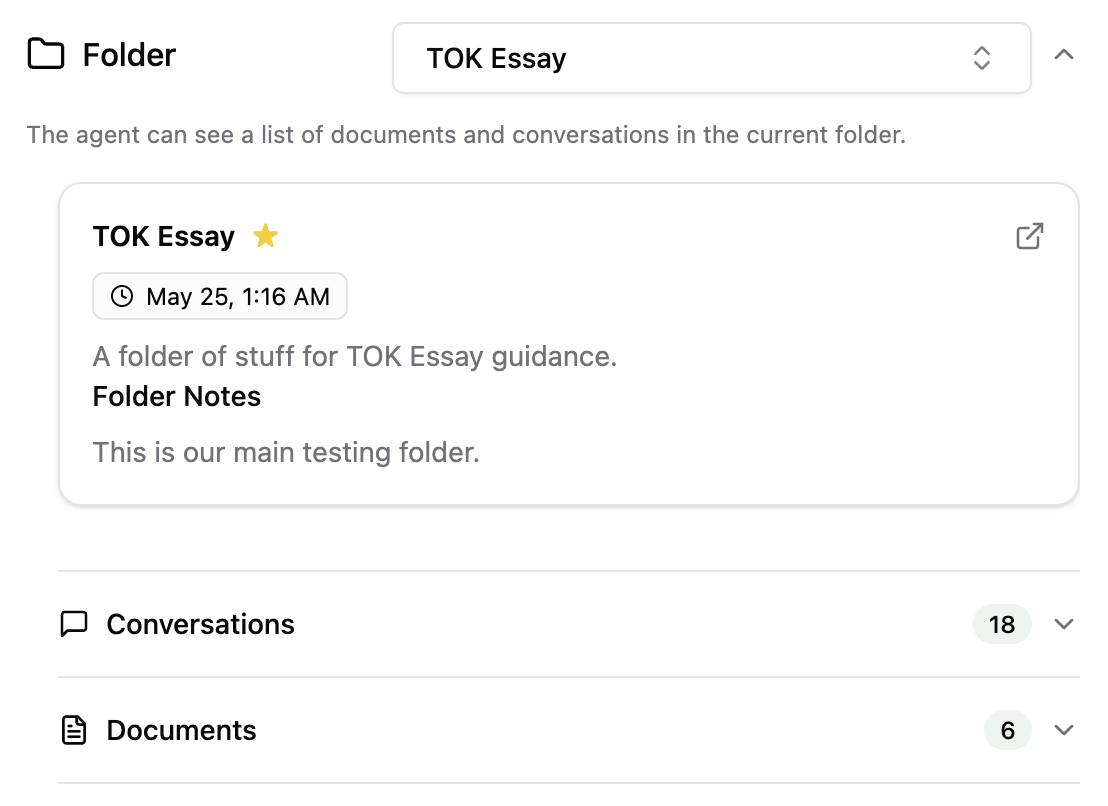
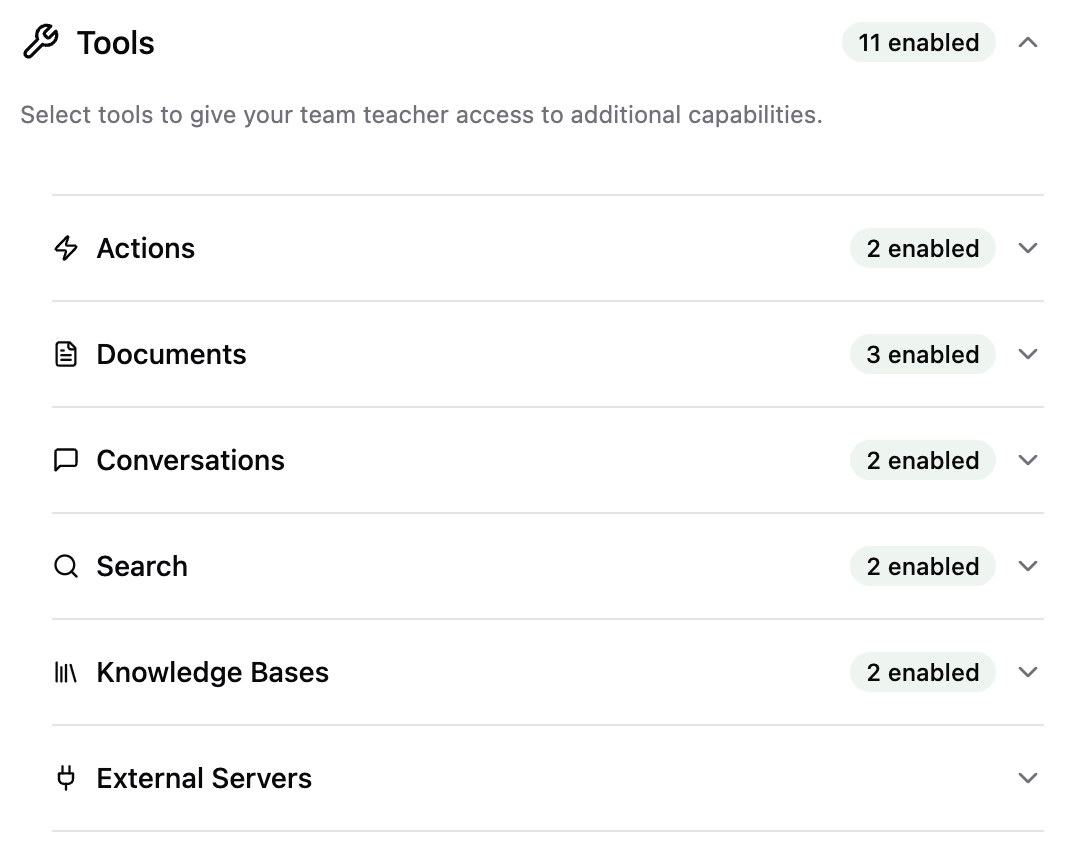
The documents in the current folder are included as a list of document IDs and titles in the system messages, so the agent can always see which documents are available for quick reference. The agent can then use the Get Document tool to get the entire contents of a document at will.
The other conversations in the current folder are included as a list in the system messages. The agent can choose to get some information from a past message at-will using the Get Conversation tool.
Conversation Instructions
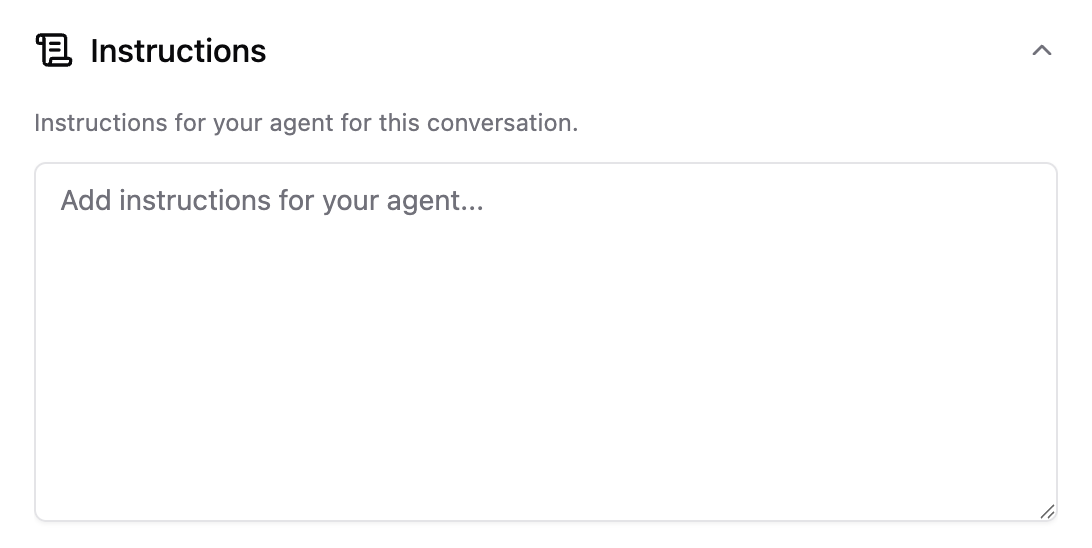
Optional: Instructions allow you to give the agent some guidance which is included with every message.
Conversation Notes
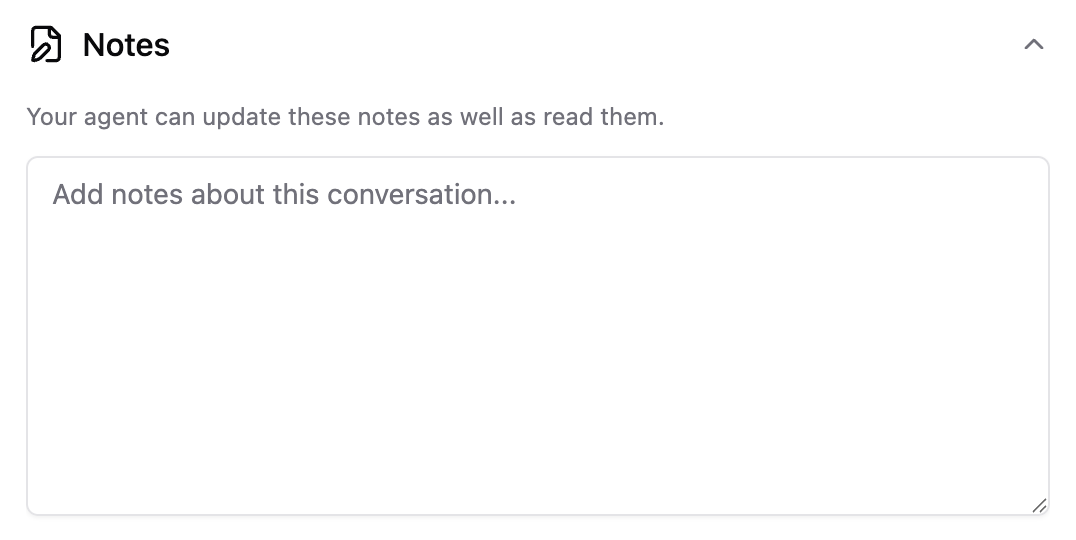
Optional: Notes are useful for keeping track of some additional context as the conversation evolves. The agent can update the Notes themselves by using the Edit Notes tool, and you can also edit or update the Notes whenever you want in the Context panel.
Conversation Tools
User messages
Your messages - including the new message and all previous messages in the conversation - are sent to the model as text.
Attachments / Files
You can optionally include attachments with your message to the agent. Attachments are provided to the AI model as a full file with a lot of extra formatting, syntax, and other noise which all must be broken down into tokens and processed to get to the content.
Files use a LOT of tokens, which limits their usefulness when working with AI. The signal to noise ratio of a PDF file for an AI agent is very low and this presents challenges for even the best AI agents.
Attachments are also included with the individual message, which means they are also included with every subsequent message too.
These two factors - the high token count, and inclusion with subsequent messages - make attachments the biggest risk to your context window in TeamTeacher. Tread with caution, and try using TeamTeacher Documents whenever possible.
Agent messages
All of the agent's past messages from the conversation - including the tool calls and results - are included when you send a new message to the agent. This allows the agent to understand the full history of the conversation including what they said in previous messages before responding again.
Tool calls include both the request - what the agent queried or provided when calling the tool - and result - what the tool gave back in response.
With most models, the 'thinking' parts of the message are not included. For this reason the agent may seem to forget what it thought for an earlier message. In most scenarios you won't notice this at all, unless you need to ask it for more context about what it "thought" earlier in the conversation.
Context Management Tools
Summarize a Conversation
At the top of each conversation in TeamTeacher there is a new 'Summarize' button. Click that button to get an AI-generated summary of the conversation, so you can easily copy it or save it to a document and create a new conversation with the summarized context.
Fork a Conversation
After each agent message you can choose to fork the conversation, or create a new conversation from that point - effectively creating a new branch to the conversation. This gives you a fresh conversation with the same folder, documents, and notes, as well as all of the messages up to that point, and enables you to take the conversation in a different direction or perform repeated tasks without polluting the context window in a single conversation.
Subagents
The TeamTeacher platform includes a number of advanced subagents. Subagents are agents which can take requests from other agents. This way your main agent - the agent you're talking to - can delegate tasks to other specialized agents including highly-specialized research agents.
Subagents help manage the conversation context window by taking advantage of separate isolated context windows for complex tasks. Each subagent is functioning in its own context window - its own sub-conversation - where it gets limited context from the main agent (not the whole conversation).
The subagent can make its own tool calls and run a series of searches before synthesizing the important results and returning only the good stuff back to the main agent - and main context window - in your conversation.
Subagents still use tokens - and sometimes more tokens in total to achieve the same task - but they dramatically improve the quality of responses so they are generally restricted to paying subscribers and pro users.
Automatic Context Management (experimental Claude feature)
When working with Claude models, we've recently introduced some automatic context management: automatic tool result pruning.
Whenever TeamTeacher agents call tools they get a response back, and for some tools (like the Knowledge Bases) that can include a lot of tokens. These tool responses - like the rest of the agent messages - are normally included in every subsequent message. Now, with the Claude models, when your total token count exceeds a threshhold (set dynamically by TeamTeacher) we will automatically remove the results from earlier tool calls. The agent can see that the tool results were removed and choose to use the tool again if it wants that context restored.
With automatic context management you may see the token counts reduced significantly, and conversations can continue much longer. Please contact support@teamteacher.ai if you experience any issues or have any concerns.