Exporting to Google Drive and Printing Your Documents
Sometimes a document needs to leave TeamTeacher — to live in a colleague's Google Drive, or to come out of a printer. Both paths take a couple of clicks from the document's own page.
Export a document to Google Drive
- Open the document at its own page (
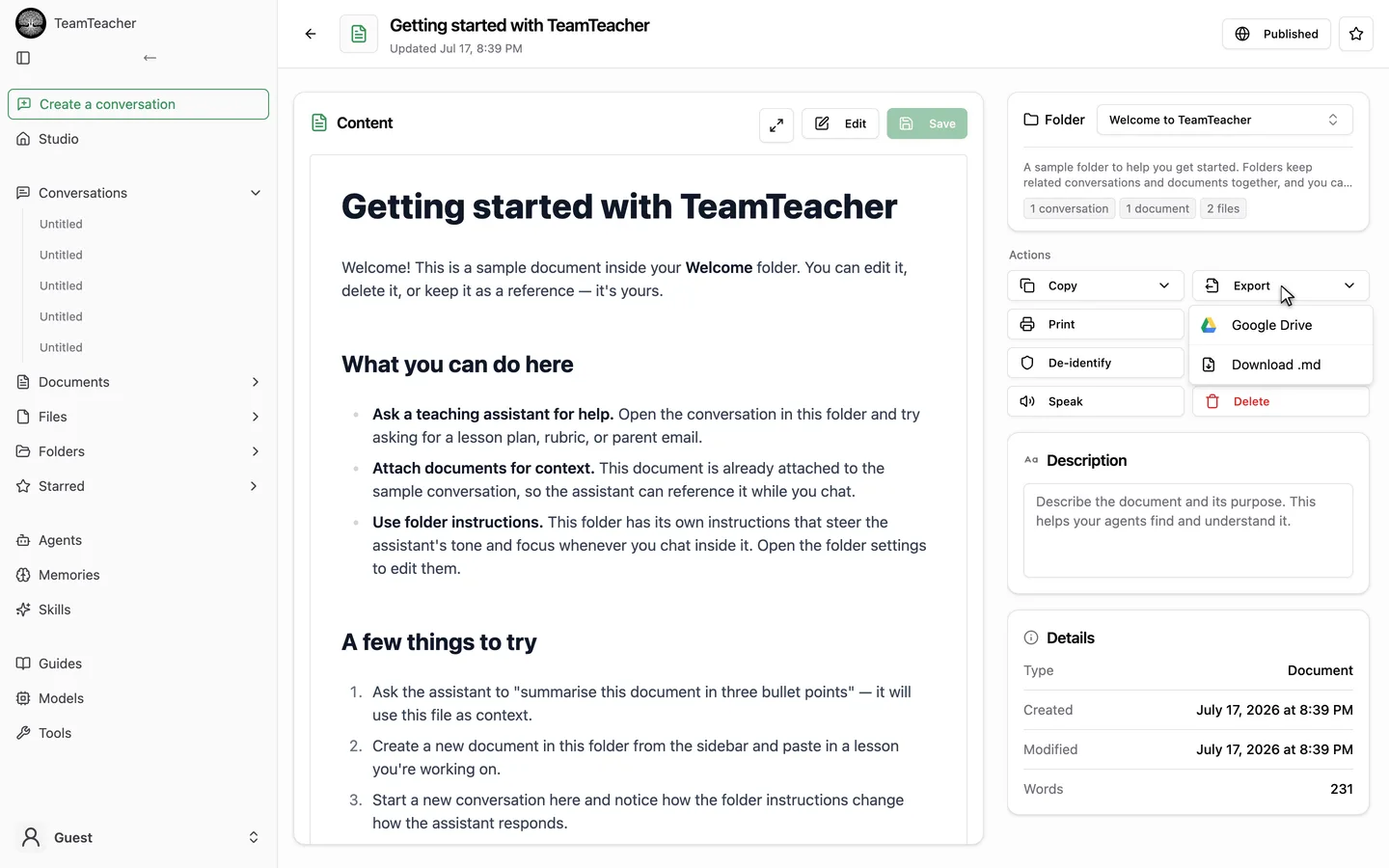
/documents/123). - Click Export in the Actions menu.
- Choose Google Drive from the dropdown.
- The first time you do this, Google will ask you to sign in and grant access — after that, it's a single click per export.
- TeamTeacher converts the document's content to a new native Google Doc and uploads it to your Drive. A small pop-up notification appears with an Open link straight to it.
A few things worth knowing before you rely on this:
- It's a one-time copy, not a sync. Exporting creates a brand-new Google Doc. Editing the TeamTeacher document afterward won't update the Google Doc, and editing the Google Doc won't update anything back in TeamTeacher. If you need the latest version out there, export again — it'll create another new file rather than update the old one.
- It only goes to Google Docs. There's no "export to Google Sheets" option, and no way to push updates into an existing Google Doc — every export is a fresh file.
- Access is limited to files TeamTeacher itself created or that you've opened through its picker — it can't browse the rest of your Drive.
- You need to be signed in to a real TeamTeacher account (not browsing anonymously) for the Export button to work.
This is the reverse of importing a Google Doc or Sheet into TeamTeacher (look for an "Import from Google Drive" option on the Documents page or inside a conversation) — that's a separate, one-way trip in the other direction, and it isn't the focus of this guide.
Print a document
-
Open the document at its own page (
/documents/123). -
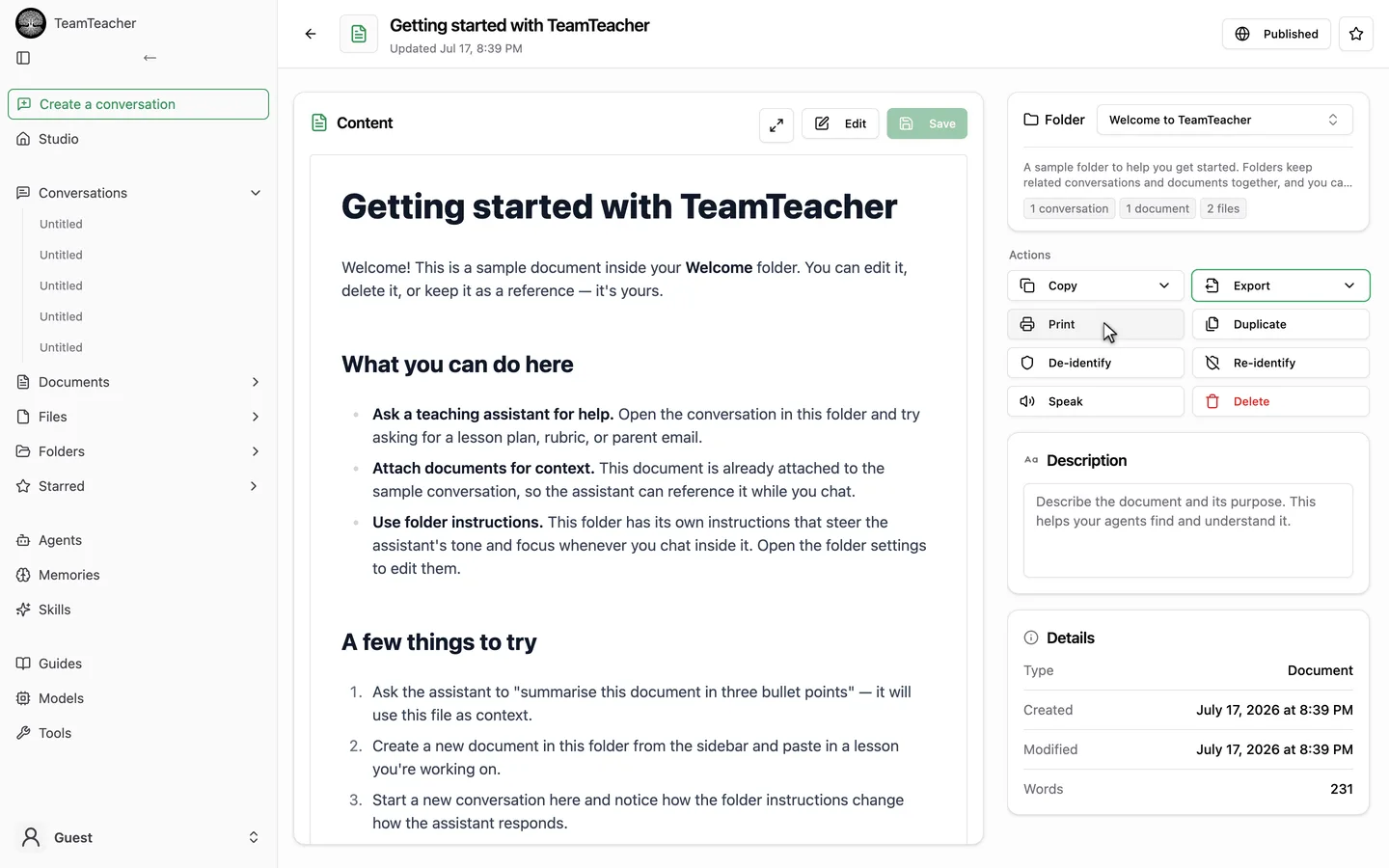
Click Print in the Actions menu, alongside Copy and Export.
-
Your browser's normal print dialog opens. From there you can send it to a physical printer or choose Save as PDF — that part is entirely up to your browser/OS, not TeamTeacher.
What ends up on the printed page: the document's title, its description if it has one, and the rendered content — no sidebar, header, badges, or buttons. It prints in black-on-white even if you're using TeamTeacher in dark mode, and it works whether you're in read or edit mode (it always prints the saved content, not whatever's mid-edit in the live editor). Long documents with code blocks, block quotes, tables, or images get basic protection against splitting those awkwardly across a page break.
A couple of gaps to know about:
- Print isn't available for Slides-type documents — the button doesn't show up there, since printing would currently dump the raw slide markup rather than the rendered slides.
- Spreadsheet documents don't really work with Print yet. The button doesn't have anything meaningful to print for them, so in practice it stays disabled.
- There are no page numbers, headers/footers, or TeamTeacher branding added to the printout — whatever your browser's print preview offers is what you get.
- Print only lives on the individual document page — there's no print option on the documents list or from inside a conversation.
Quick reference
| | Google Drive export | Print | | -------------- | ------------------------------------- | --------------------------------------------------------- | | Where | Export button → Google Drive | Print button | | What you get | A new native Google Doc in your Drive | Your OS print dialog (send to printer or save as PDF) | | Stays in sync? | No — one-time copy | N/A, always prints current saved content | | Works on | Rich-text documents | Rich-text documents (not Slides; not really spreadsheets) |
For the difference between a Document and a File — and what else you can do with each — see Files and Documents.