Academic Vocabulary Support from Any Text: Three Prompts 📚
Start a conversation with the Academic Vocabulary Extractor skill
Prefer to skip the step-by-step prompts? Describe your task and TeamTeacher runs this whole workflow with you, using the Academic Vocabulary Extractor skill.
You have a text—an article, a transcript, an assignment, even your entire unit plan. Students need vocabulary support, but building structured practice takes time you don't have.
This workflow helps you extract key academic terms, format them for Quizlet import, and create meaningful student activities in about 5 minutes. The result: comprehensive vocabulary support you can use in class, share with colleagues, or give to specialists.
The Three Prompts
📝 Prompt 1: Review and Extract
📤 Prompt 2: Quizlet-Ready List
🎯 Prompt 3: Student Activity (pick one or ALL)
🅰️ Word Detective
🅱️ Vocabulary Flex
🅲 Teach-Back Cards
How to Adapt This 🔧
- Different text sources: Works with articles, transcripts, assignments, textbook chapters, or entire unit plans
- Different student needs: Adjust student descriptions in Prompt 1 to get age-appropriate, culturally responsive definitions
- Multiple activities: Run Prompt 3 three times (A, B, and C) to create a full activity menu
- Collaborative support: Share your Quizlet set with co-teachers, learning specialists, or department colleagues
What You'll Get ✨
This workflow creates everything you need for comprehensive vocabulary instruction:
- Complete list of academic and content-specific vocabulary extracted from your text
- Quizlet-ready format with student-friendly definitions and contextual example sentences
- Your choice of three engaging student activities: Word Detective (authentic context finding), Vocabulary Flex (creative writing), or Teach-Back Cards (peer teaching)
You'll have vocabulary support ready to use, easy to import to Quizlet, and shareable with anyone supporting your students.
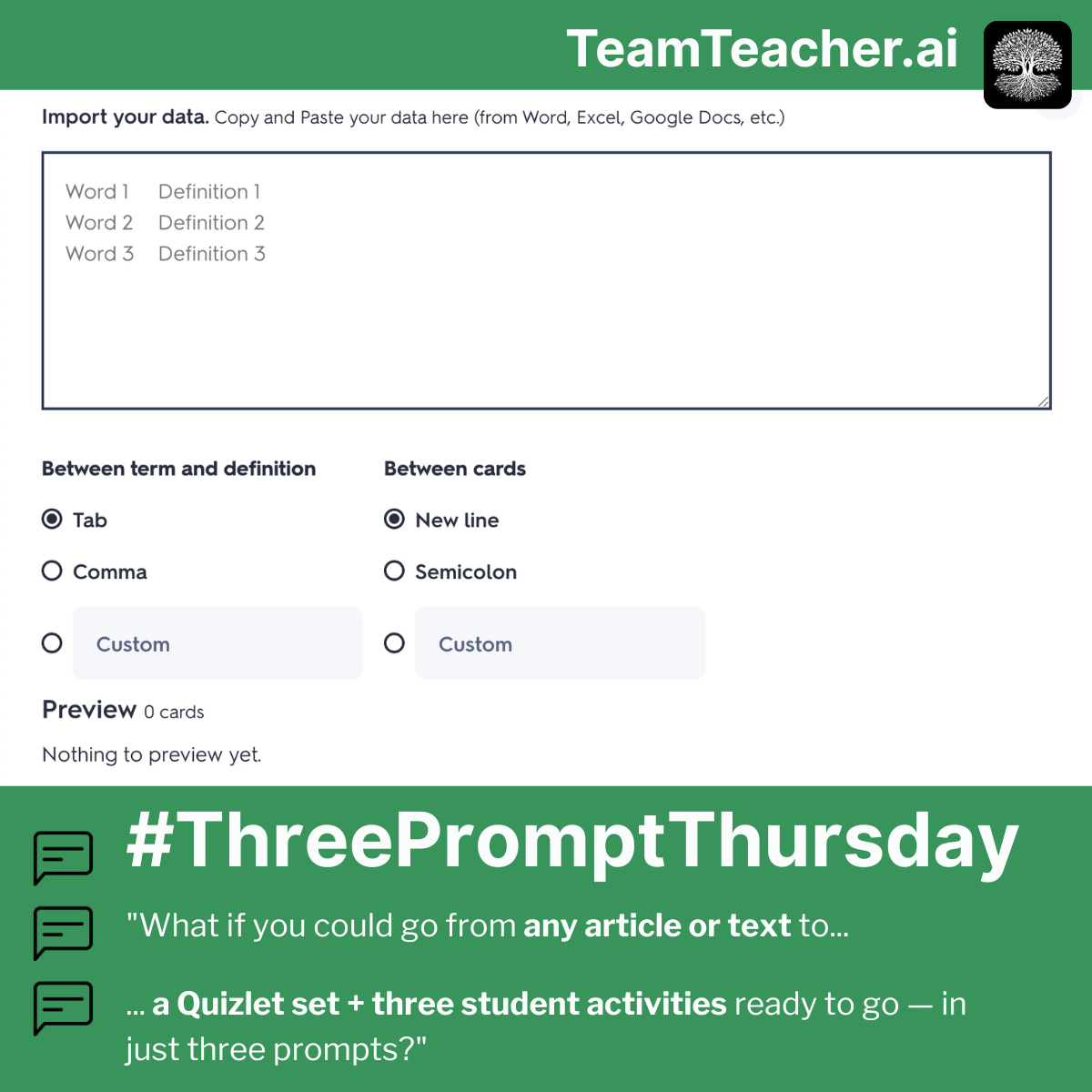
🌳 Pro tip: To import to Quizlet: (1) Copy Prompt 2 output, (2) Go to quizlet.com/create-set, (3) Click "Import" → Paste → Set delimiter to "colon", (4) Done! Share the link with students and colleagues.
Want to see where this started? Check out the original #ThreePromptThursday LinkedIn post