Sharing Conversations and Documents
Sometimes you want to hand someone a link instead of an export — a conversation transcript for a colleague, or a document for a student who doesn't have a TeamTeacher account. TeamTeacher has two sharing features that do this: one for conversations, one for documents. Both work the same basic way — a public, read-only link that opens without logging in — and both are brand new, so we'd love your feedback at support@teamteacher.ai if anything looks off.
Sharing a conversation
- Open a conversation you own.
- Click the Share icon in the conversation header.
- Toggle Public sharing on. A link (
teamteacher.ai/share/conversations/...) appears with a Copy button.
Anyone with that link can open it without logging in and see the conversation's title, which agent and model were used, when it was created, and the full transcript — including any tool calls the agent made along the way. They can copy text out of it, but they can't fork it (copy it into their own account to continue the conversation), save any of it as a document, or react to it.
If you're still mid-response when someone opens the link, they just see the transcript up to your last completed turn — there's no live streaming for viewers yet. Real-time updates are planned for a later phase.
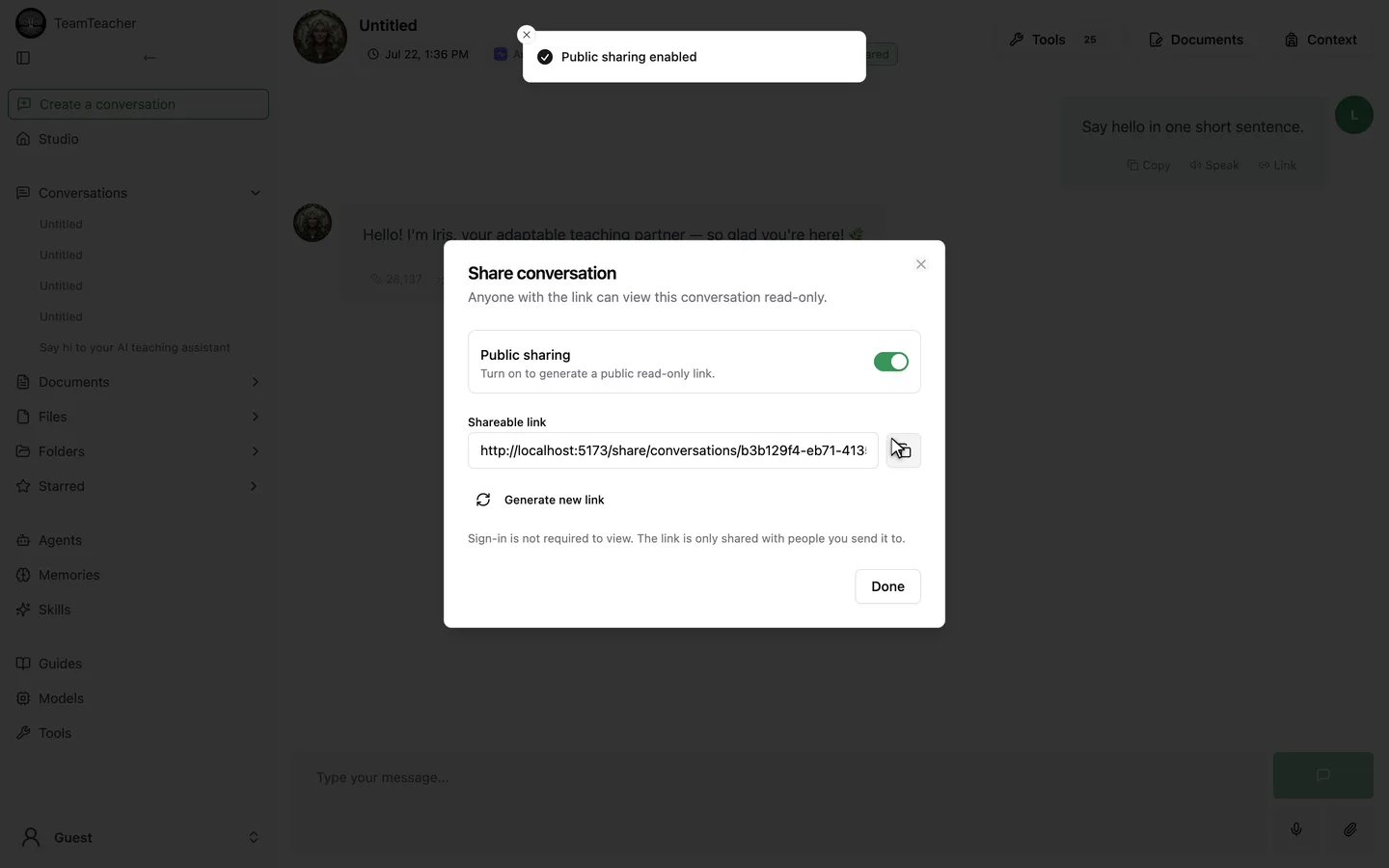
Turning sharing off breaks the link immediately — anyone who tries to open it will hit a 404 page. Turning it back on restores the same link rather than generating a new one. If you want to cut off everyone who already has the old link — say, after sharing with a class — use Generate new link instead of toggling off and back on.
Sharing a document
- Open a document.
- Click Publish in the header, next to the star button.
- Toggle the public link on. A link (
teamteacher.ai/share/documents/...) appears with a Copy button, and the button now reads Published.
A recipient sees the title, description, last-updated date, and the content itself, rendered read-only in the same viewer you use inside TeamTeacher — plain text for a rich-text document, a grid for a spreadsheet. There's a small "Shared with TeamTeacher" footer with a sign-up link, and nothing else.
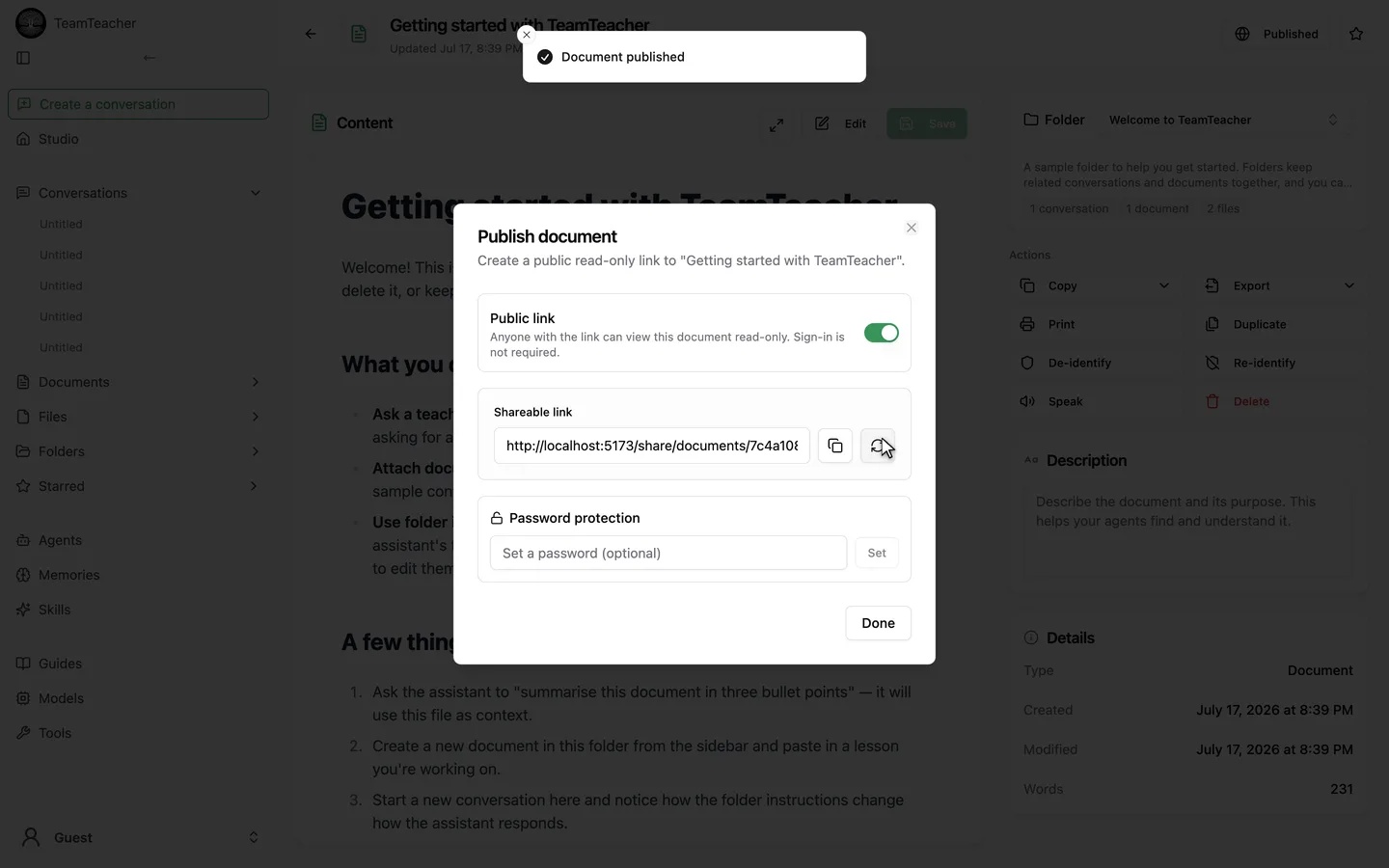
Documents have one option conversations don't: a password. In the same dialog, type a password and click Set to lock the link — a visitor then enters it once, and their browser remembers it for about 12 hours. Remove the password later and the link opens freely again, with no need to unpublish first.
As with conversations, turning sharing off kills the link, turning it back on reuses the same link, and Generate new link is the way to actually revoke a link that's already gone out. That one asks for confirmation, since anyone holding the old link loses access right away.
What a viewer can and can't see
Both features publish a narrow, deliberately limited slice of your data, not the whole record. A shared conversation link exposes the title, agent, model, date, and chat turns — not your other conversation settings. A shared document link exposes the content, title, description, and date — not your other documents or files. Any image or attachment the shared page needs to display gets its own temporary link generated for that purpose, rather than exposing your library directly. Both kinds of page are also marked so search engines won't index them.
Worth knowing
- These links are genuinely public once turned on — no login requirement, no way to restrict them to specific people. If you need "just my class," a link isn't a substitute for controlling who you actually send it to.
- There's no view count, expiration date, or access log on either feature yet.
- Sharing a custom agent's chat link is a different, older feature, and it's currently broken (the link returns a 404). That's unrelated to the conversation and document sharing described here.
- For the difference between a Document and a File, see Files and Documents — sharing works the same way regardless of which kind of document you're publishing.