Set up the ChatGPT App (Experimental)
This guide walks you through connecting TeamTeacher to ChatGPT so your agents — Minerva, Diane, Barbara, and your custom agents — become tools ChatGPT can call on. New to the connector? Start with the TeamTeacher Connector overview for the big picture.
ChatGPT's Apps feature (MCP support) is experimental. It's currently in beta and requires both a paid ChatGPT plan and Developer mode to be enabled. The setup process and available features may change as the feature evolves.
Setting Up in ChatGPT
Here's how to set it up.
Step 1: Enable Developer Mode
Go to Settings → Apps → scroll down to Advanced settings. Or jump straight there: chatgpt.com/#settings/Plugins.

Toggle on Developer mode. This is a beta feature that allows custom MCP apps.

Note: Developer mode is required because TeamTeacher is a custom MCP server. Memory is disabled in Developer mode, so ChatGPT won't remember conversations across chats.
Step 2: Create the App
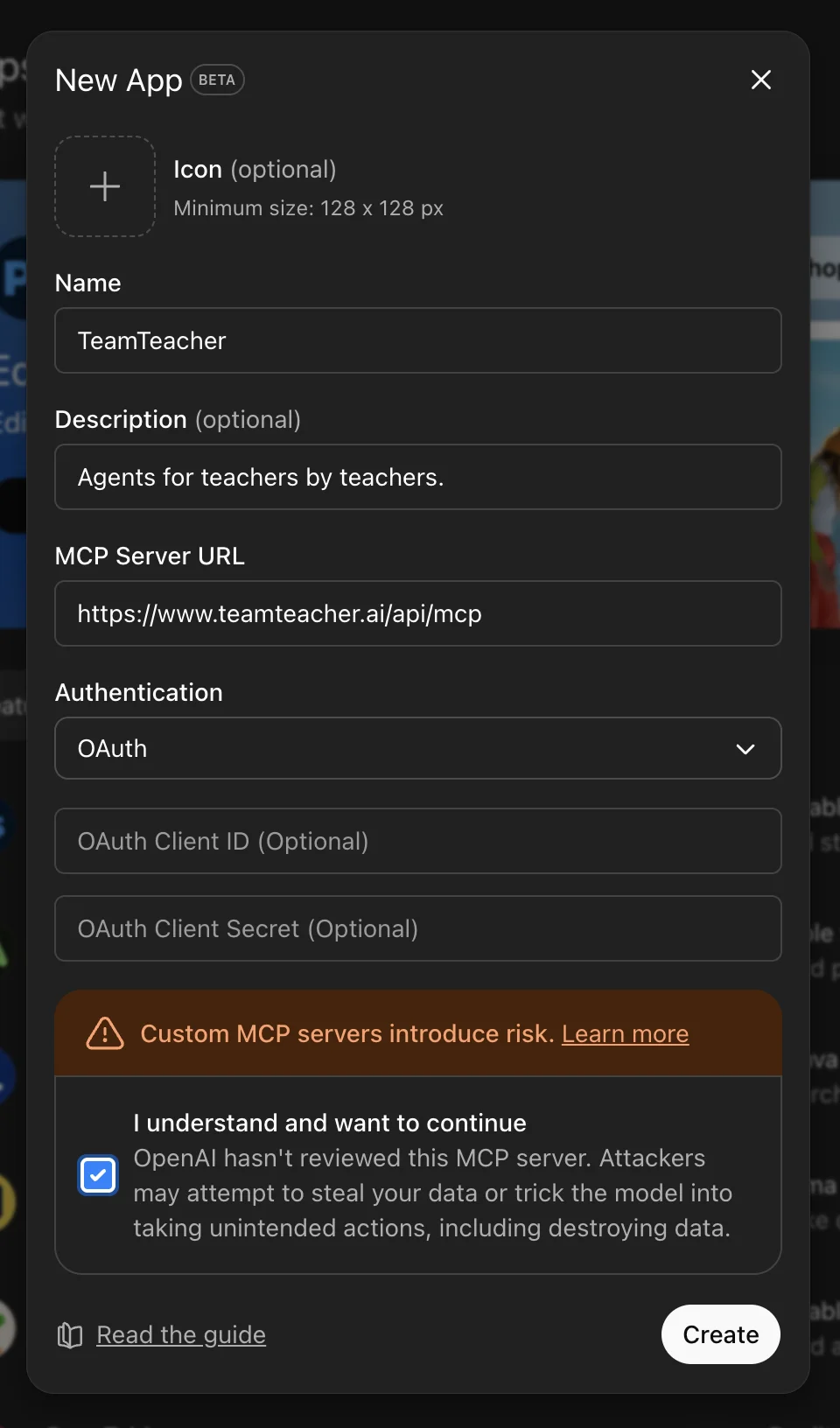
In the Apps settings, click Create app next to Advanced settings.
Fill in the following details:
- Name:
TeamTeacher - Description:
Agents for teachers by teachers. - MCP Server URL:
https://www.teamteacher.ai/api/mcp - Authentication:
OAuth
Check the acknowledgment box and click Create.
Step 3: You're Connected
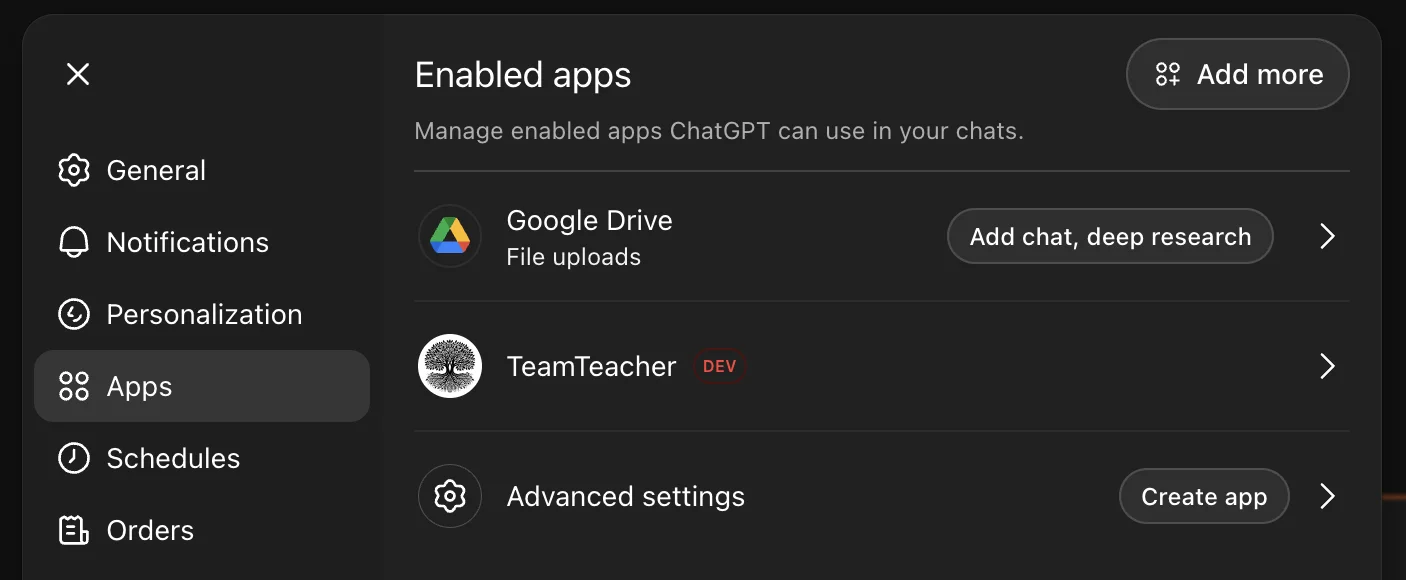
You'll see a confirmation that TeamTeacher is now connected.

TeamTeacher now appears in your Apps list with a DEV badge (indicating it's a custom developer app).
Step 4: View Available Agents (Optional)
Click on TeamTeacher to see connection details and the list of available agents.
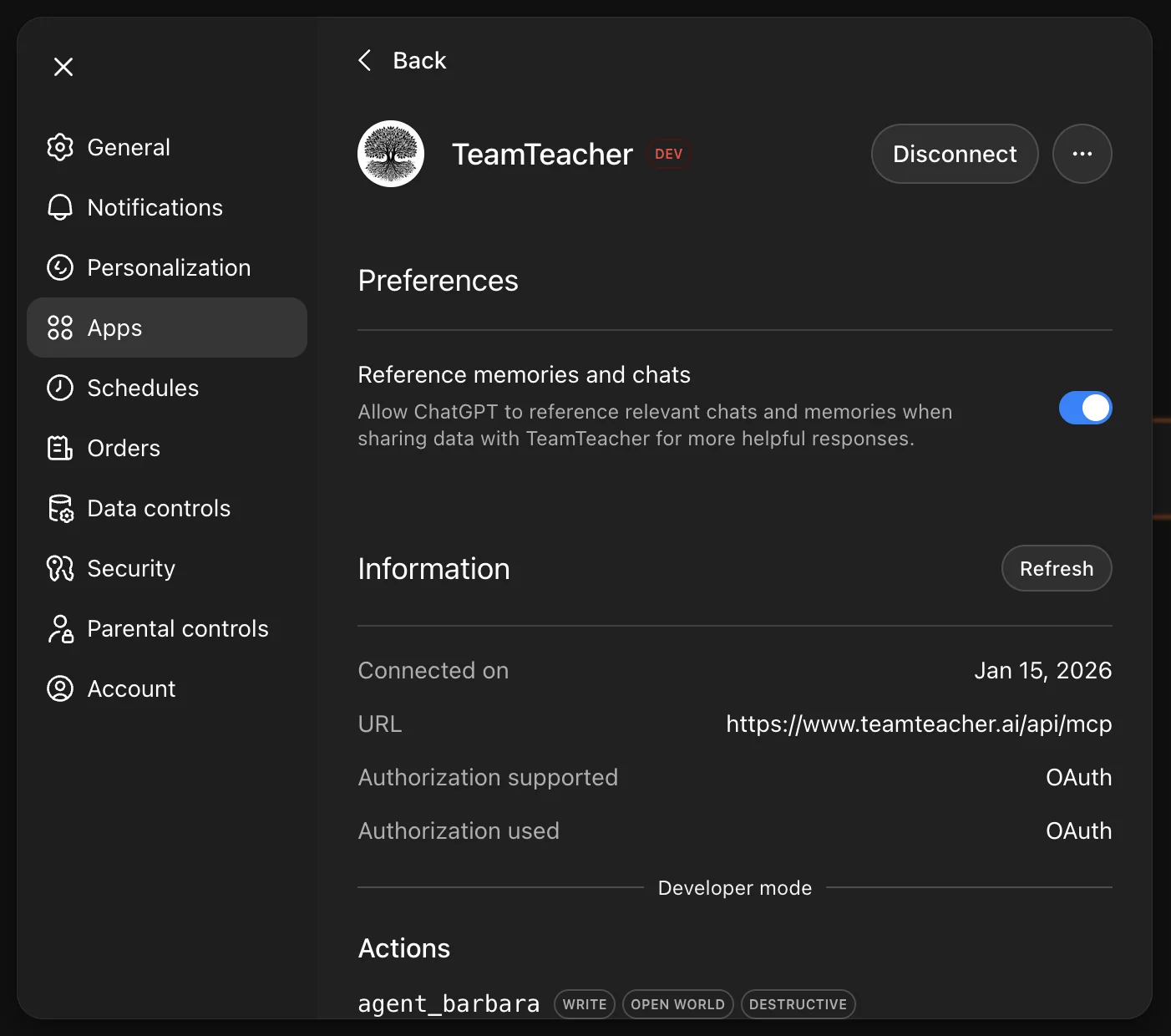
You'll see all your agents listed with their capabilities (like agent_minerva, agent_barbara, etc.).
Using TeamTeacher in ChatGPT
Now that TeamTeacher is set up, here's how to use it.
Enable TeamTeacher for a Chat
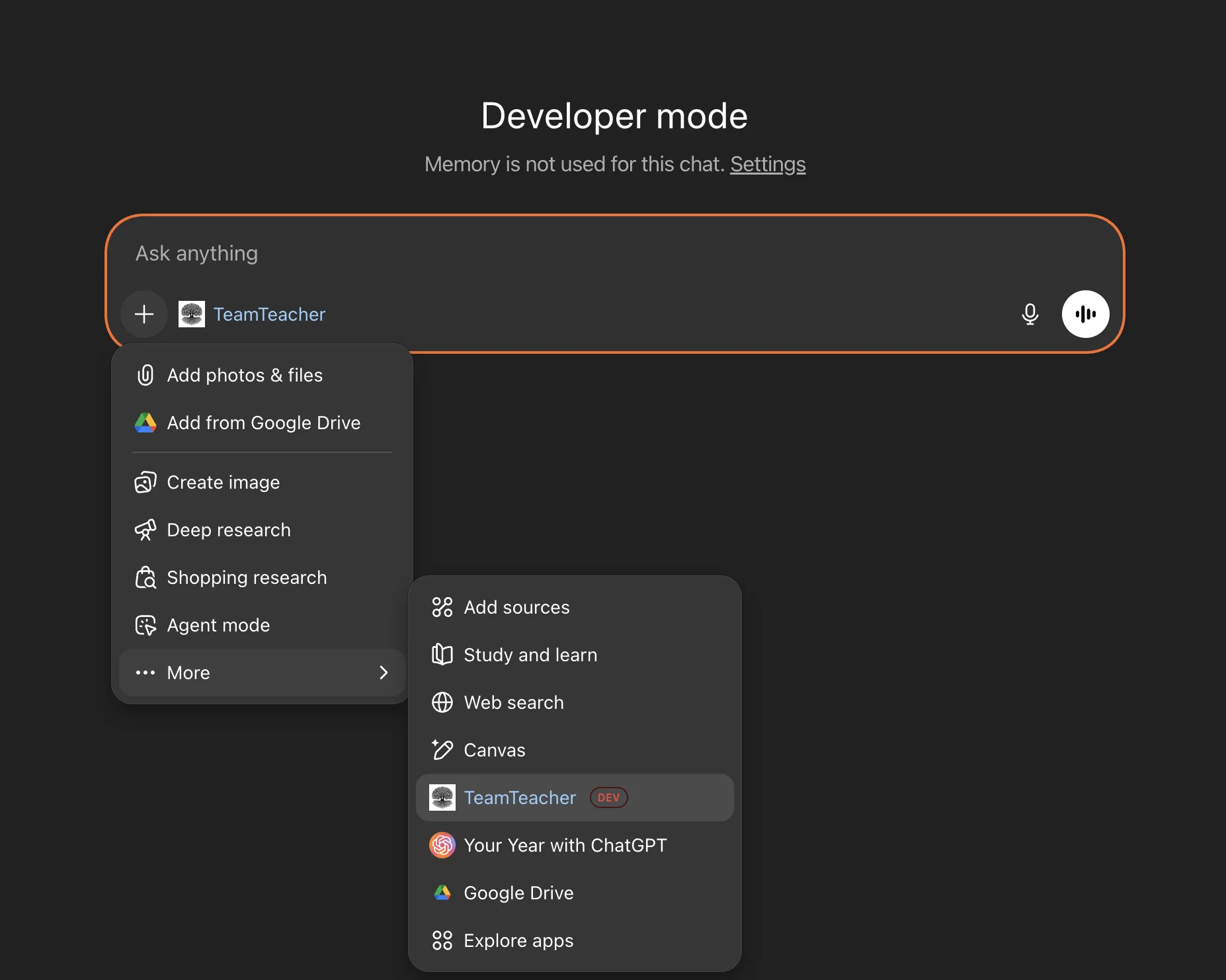
When in Developer mode, click the + button in a chat and select TeamTeacher from the menu.
Your First Request
Ask ChatGPT to use one of your TeamTeacher agents:
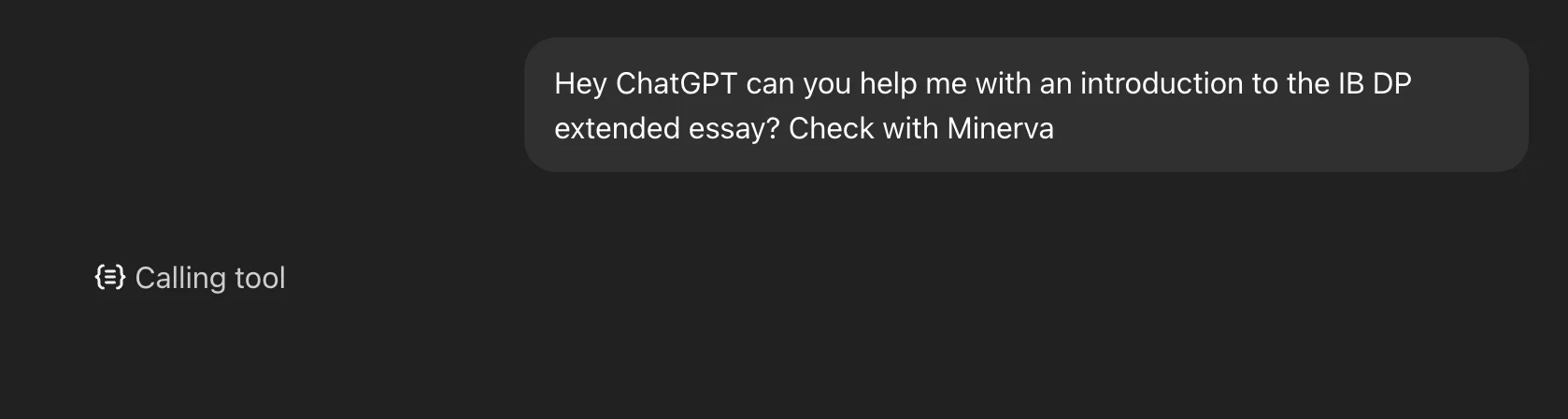
"Hey ChatGPT can you help me with an introduction to the IB Diploma Programme (DP) extended essay? Check with Minerva"
You'll see "Calling tool" as ChatGPT connects to Minerva.
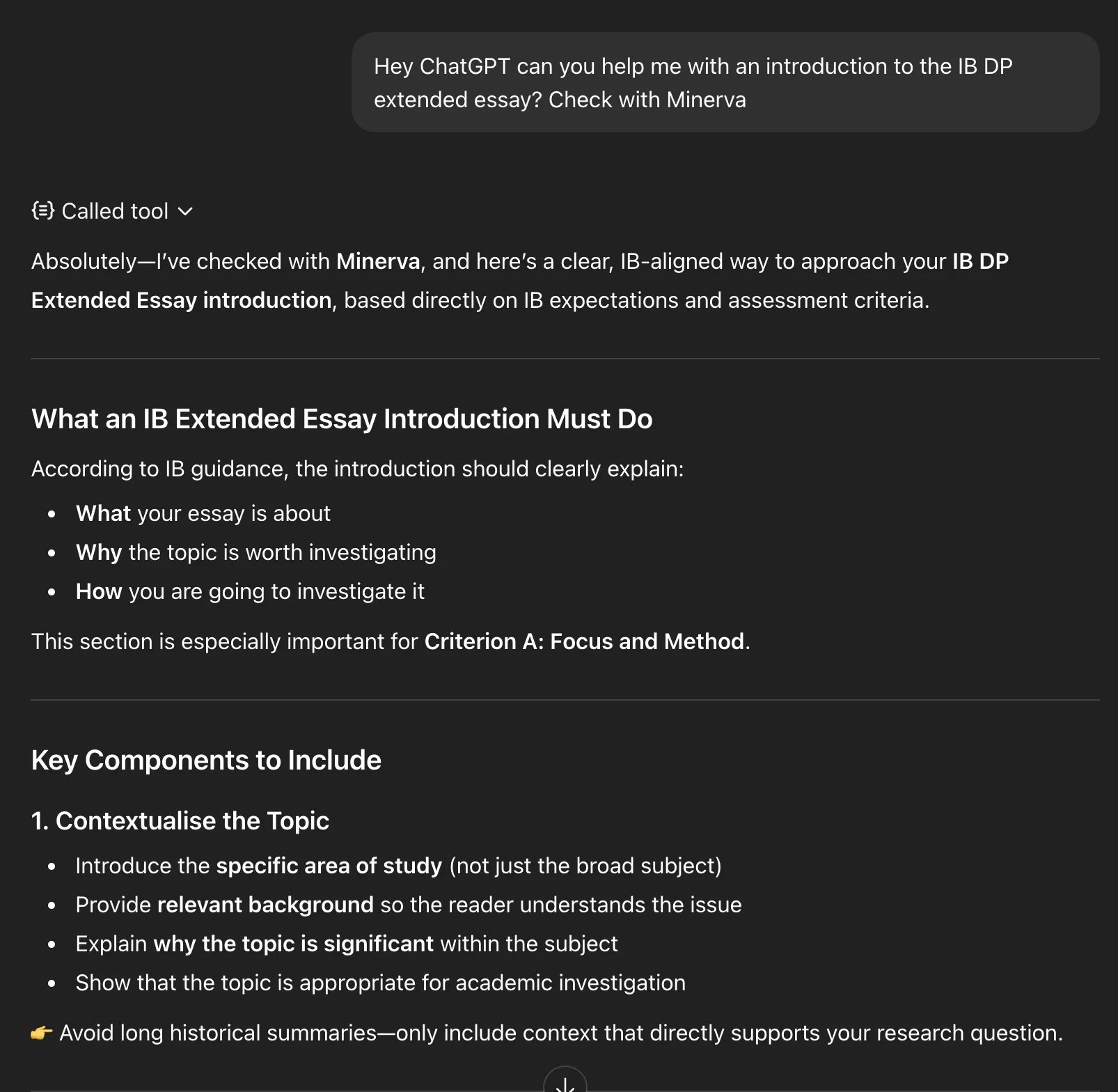
Minerva responds with IB-aligned guidance:
Other things you can try:
- "Ask Minerva to help me plan an IB Middle Years Programme (MYP) unit"
- "Have my custom agent search my documents"
- "Ask Diane about Texas TEKS standards"
See What's Being Shared
One of our core values is technical transparency. When ChatGPT calls a TeamTeacher agent, you can click "Called tool" to see exactly what data was sent and received.
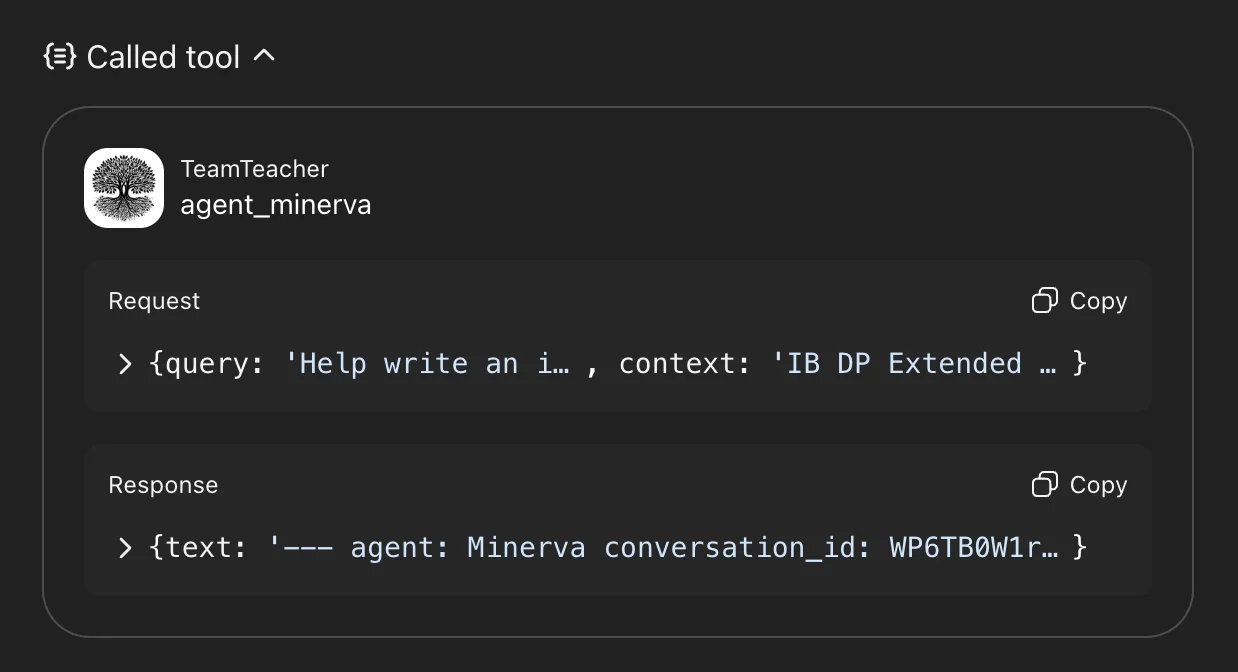
This shows:
- Request — The query and context sent to your agent
- Response — What the agent returned
If you're concerned about data sharing, Developer mode already disables memory, so conversations aren't remembered across chats.
Set Up Other Apps
Use TeamTeacher somewhere else too: