Tools: What Your Agent Can Do Besides Talk
An AI model on its own can only write text back at you. It can't open your unit plan, can't check what a criterion descriptor actually says, can't save the rubric it just drafted. Tools are what change that — and that's most of the difference between a chatbot and an agent.
A tool is a choice, not a command
You don't run a tool. You ask for something, and the agent decides what it needs.
Ask "does my Grade 8 rubric actually match criterion B?" and the agent can search your documents for the rubric, pull the full text of the one it finds, look up the criterion in the IB knowledge base, compare them, and then write the answer. Four actions, one request, and you never named a tool.
That's why you can phrase things as goals rather than steps. It also means the agent's choices are worth watching — which is what the cards in your transcript are for.
Seeing what it did
Every tool call shows up in the conversation as its own card, with the tool's name and whether it succeeded. Click one to expand it and you'll see both halves: what the agent sent — the search terms, the document it asked for — and what came back.
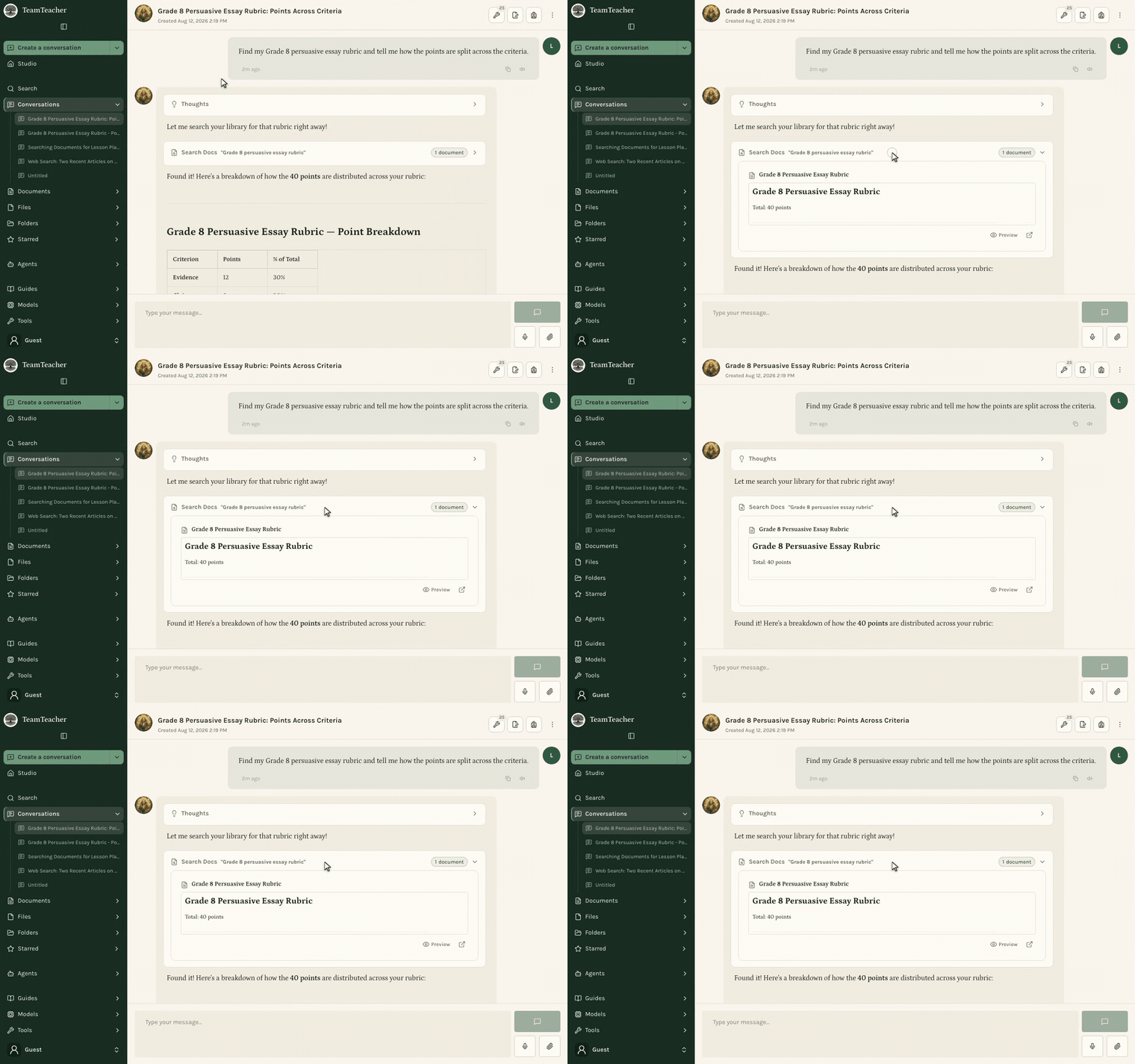
Worth opening when the answer surprises you. If the agent quotes a standard, the card shows you the wording it was actually working from. If it says it can't find your rubric, the card shows what it searched for — often the search terms were fine and the document just needs a description.
Every agent arrives with a set
Each agent starts with a default set of tools, so a new conversation is already equipped.
Every agent gets the core set: searching and reading your documents, saving and editing them, searching your folders and past conversations, updating the conversation notes, web search, generating an image, and math it can actually verify. On top of that, each specialist adds its own — Minerva brings the IB knowledge bases, Barbara the Texas ones. Your own custom agents carry whatever you choose when you build them.
A few tools manage themselves and don't appear as choices: the ones for reading your attached files and your memories switch on when there's something to read.
Choosing what's enabled
Two places, same list:
- The wrench in the conversation header — a searchable list grouped by category, with a count of what's on.
- Tools in the Context panel — the same thing with room to breathe. Expand any tool to read what it does before deciding.
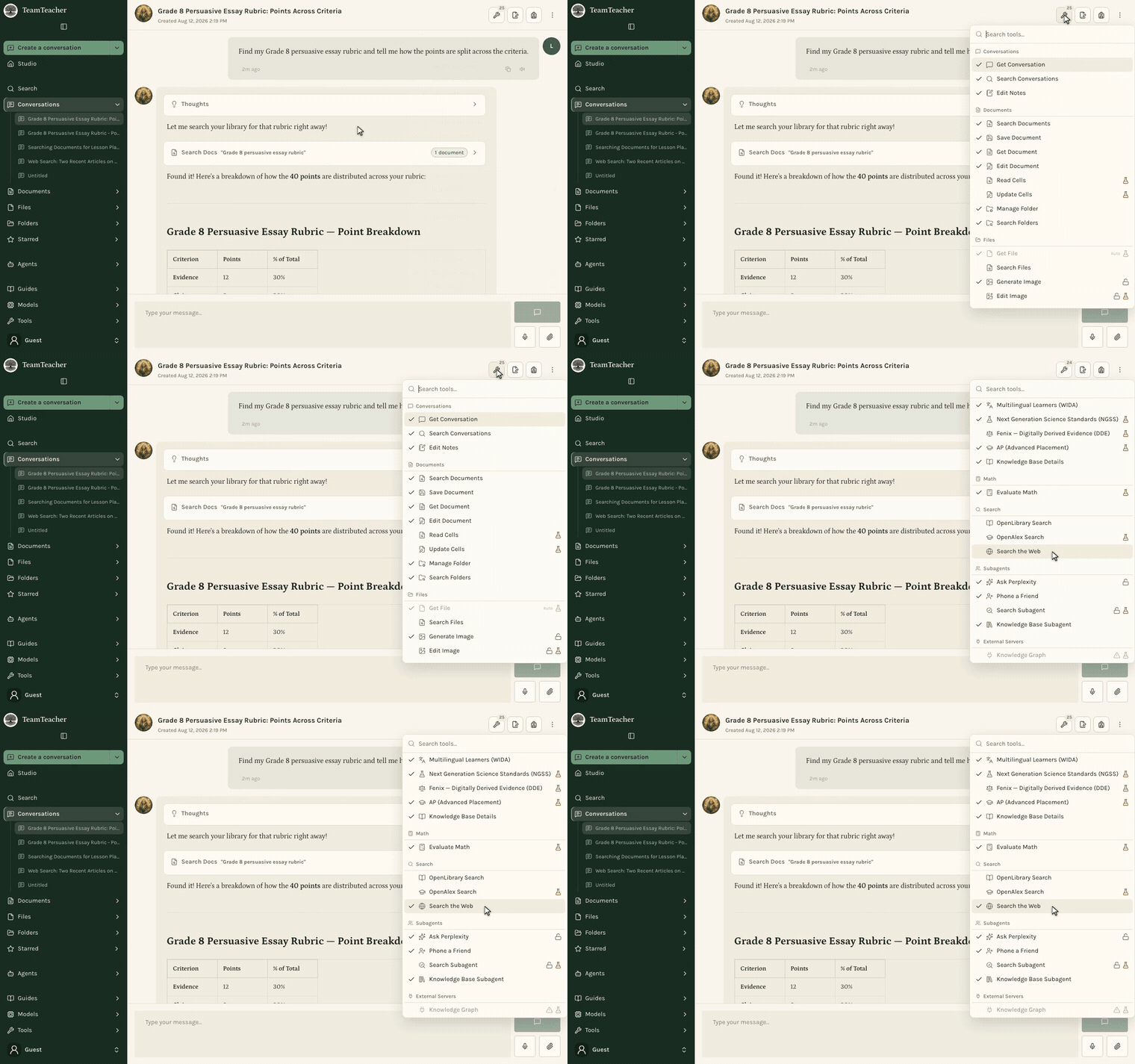
Changes save to that conversation as you make them, and affect only that conversation. Your next one starts from the agent's defaults again.
Alongside each tool you may see a padlock (included with a paid plan), a beaker (experimental — it works, we're still refining it), or a warning triangle (an external server that isn't responding right now).
Why you'd turn some off
Two good reasons, and they compound.
To keep the agent in its lane. A tool that's on is a tool the agent may reach for. If you want feedback drawn strictly from your own materials, turning off web search is more reliable than asking it not to search.
To spend fewer tokens. Every enabled tool sends its description to the model with every message in the conversation, whether it gets used or not. Thirty tools you're not using is a standing cost on each turn. Trimming to the handful a conversation actually needs leaves more of the context window for your work — see Context Management in Conversations for the full picture.
One thing to know: switching a tool off stops the agent using it from that point on. Results it already returned stay in the conversation, because the agent's earlier messages are part of the history.
What's available
Tools are grouped into categories:
| Category | What's in it |
|---|---|
| Documents | Finding, reading, writing, and editing your documents |
| Files | Finding your files, generating and editing images, making files |
| Conversations | Looking back at past chats, keeping the notes and memories up to date |
| Search | Your own material, the web, TeamTeacher's own docs, book lookups |
| Knowledge Bases | Curriculum collections — IB, state standards, Common Core, UDL |
| Math | Calculation the model checks with a real math engine instead of guessing |
| Subagents | Handing research to a specialist with its own context window |
| External Servers | Tools from services you've connected |
For every tool, what it does, and which plan it needs, see the full Tools directory.