Set up the Claude Connector
This guide walks you through connecting TeamTeacher to Claude so your agents — Minerva, Diane, Barbara, and your custom agents — become tools Claude can call on. New to the connector? Start with the TeamTeacher Connector overview for the big picture.
Claude's Connectors feature is currently in beta and requires a paid Claude plan. The setup process and available features may change as the feature evolves.
Setting Up in Claude
Adding TeamTeacher to Claude takes about 30 seconds. Here's how.
Step 1: Open Settings
In Claude, open Settings using the menu or keyboard shortcut (⇧⌘, on Mac). Or jump straight there: claude.ai/new#settings/customize-connectors opens Claude with the Connectors panel already showing.

Step 2: Navigate to Connectors
In the Settings sidebar, click Connectors.
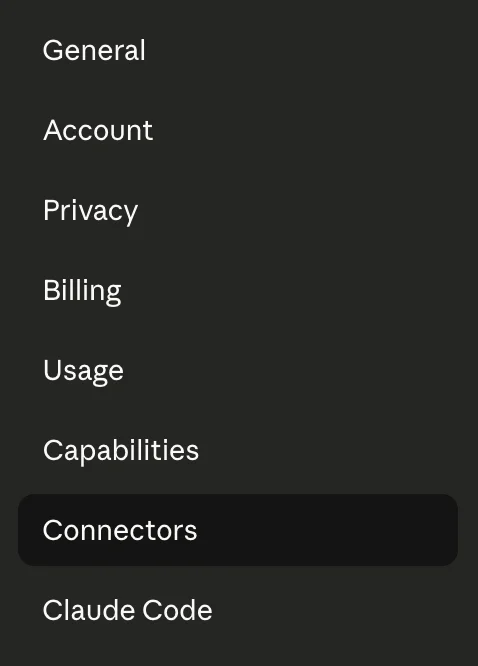
Step 3: Add Custom Connector
Click the Add custom connector button.

Step 4: Enter TeamTeacher Details
In the dialog, enter:
- Name:
TeamTeacher - URL:
https://www.teamteacher.ai/api/mcp
Then click Add.
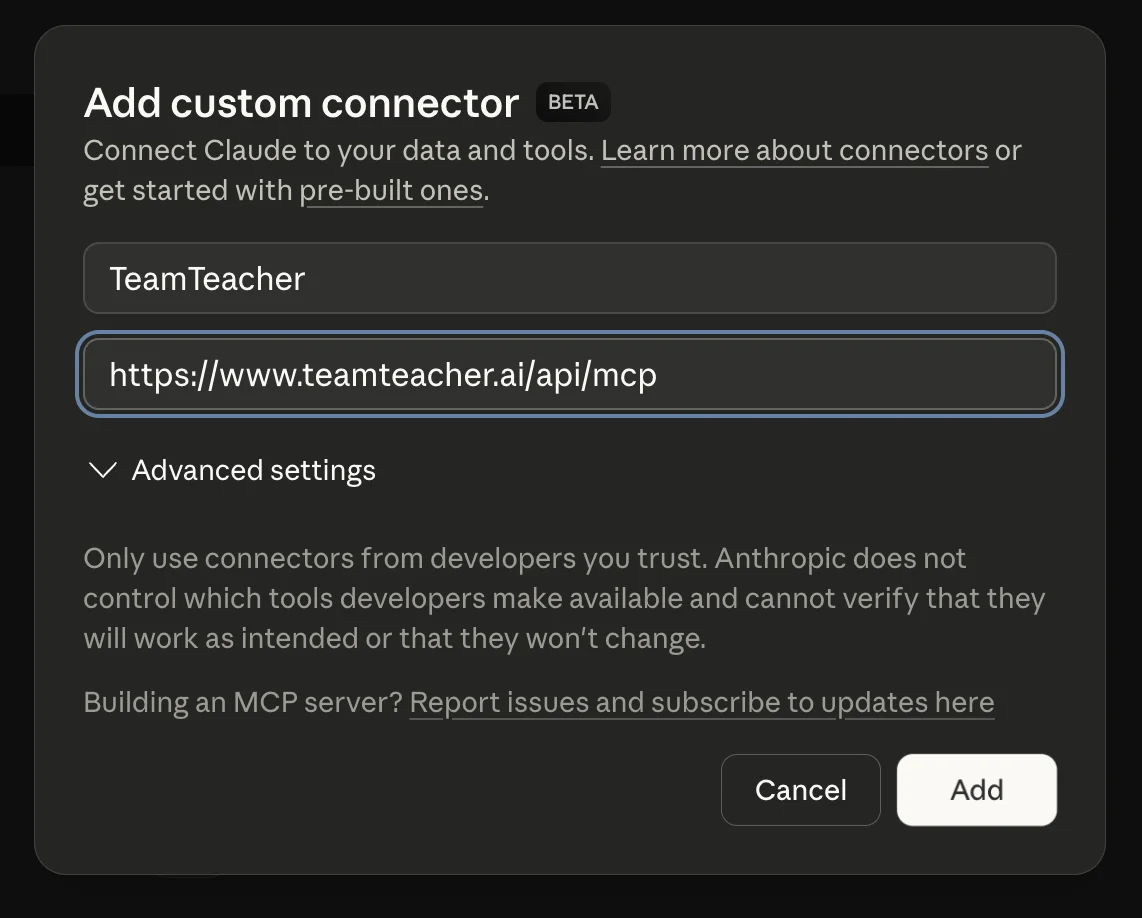
Step 5: You're Connected
TeamTeacher now appears in your Connectors list. Claude can now call on your TeamTeacher agents.

Step 6: Configure Permissions (Optional)
Click Configure next to TeamTeacher to see all available tools and set permissions.
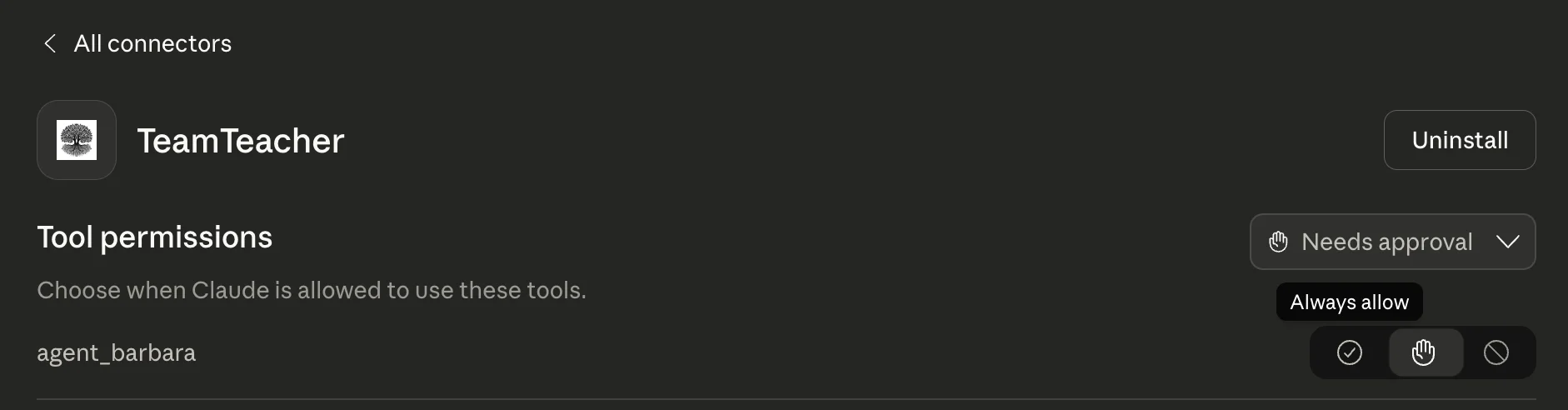
You'll see each agent listed (like agent_barbara, agent_minerva, etc.). For each tool, you can choose:
- Needs approval — Claude will ask before using this agent (default, recommended to start)
- Always allow — Claude can use this agent without asking
- Never allow — Block this agent from being used
Start with "Needs approval" so you can see when Claude calls your agents. Once you're comfortable, you can switch to "Always allow" for agents you use frequently.
Using TeamTeacher in Claude
Now that TeamTeacher is connected, here's how to use it in your conversations.
Enable TeamTeacher for a Conversation
In any Claude conversation, click the + button to add context.
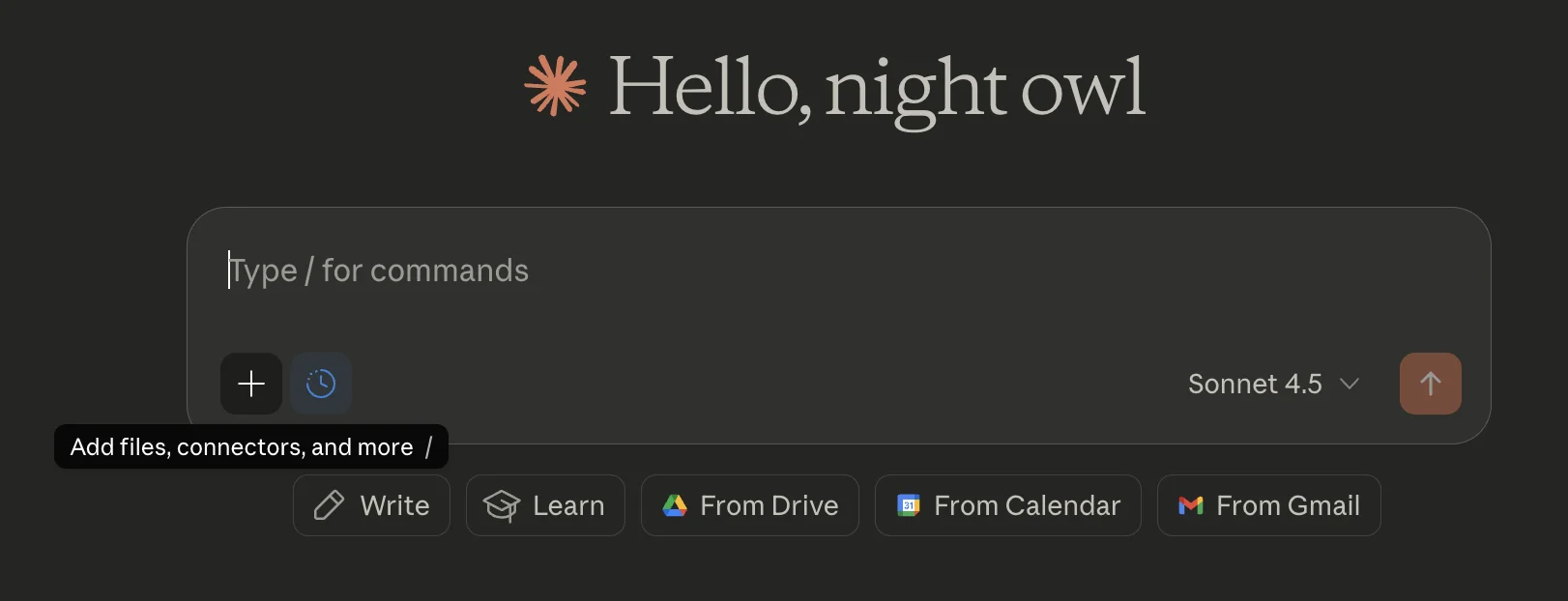
Select Connectors from the menu.

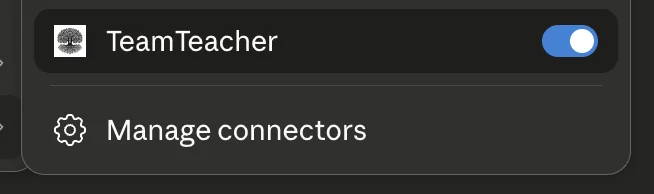
Toggle TeamTeacher on for this conversation.
Try It Out
Now you can ask Claude to use your TeamTeacher agents. For example:
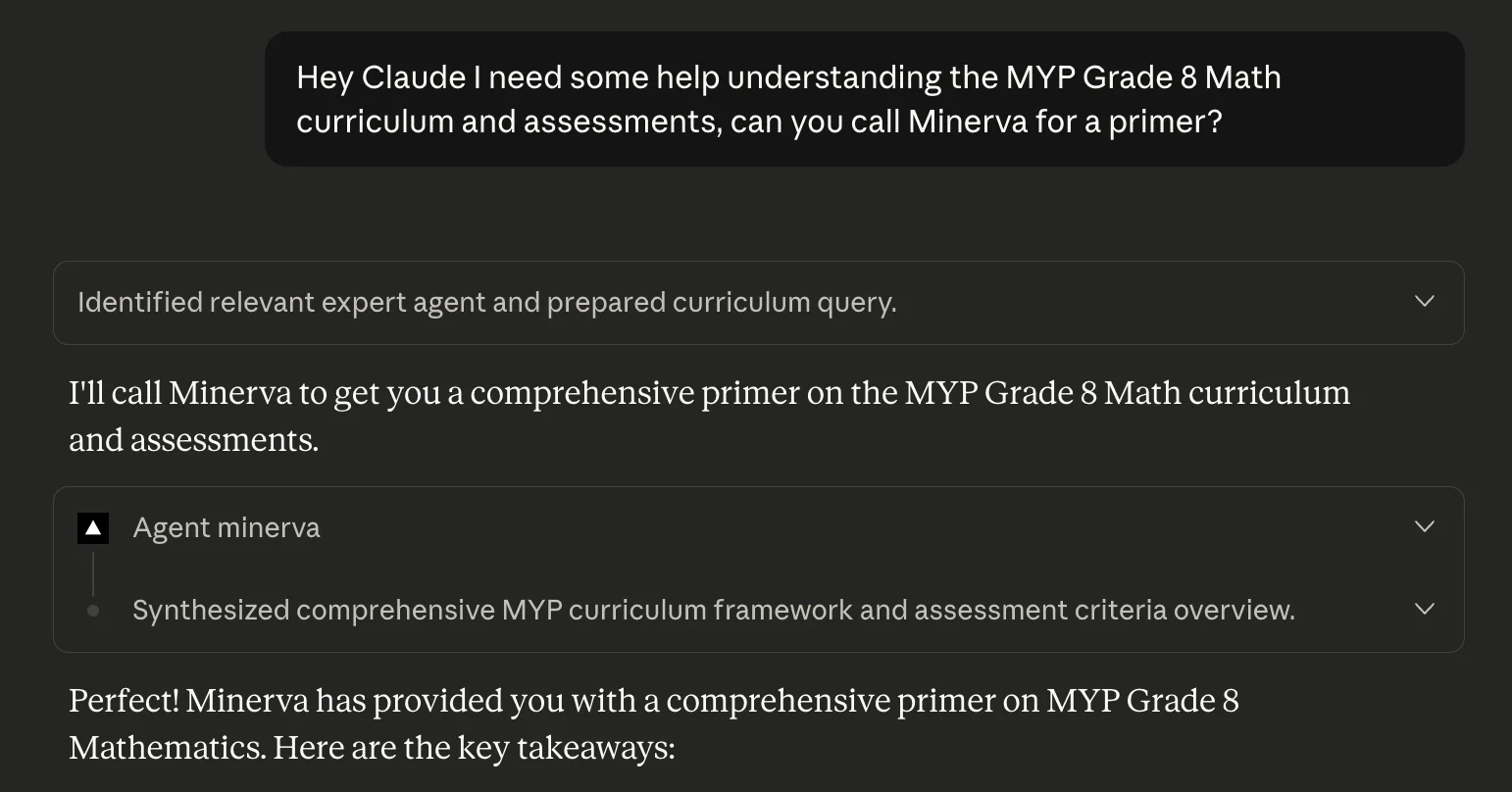
"Hey Claude, I need some help understanding the MYP Grade 8 Math curriculum and assessments, can you call Minerva for a primer?"
Claude will identify the right agent, call Minerva, and present her response:
Other things you can try:
- "Ask Minerva to review this lesson plan for IB alignment"
- "Have my custom agent search my documents for resources on fractions"
- "Ask Diane what Texas TEKS standards cover this topic"
See What's Being Shared
One of our core values is technical transparency. When Claude calls a TeamTeacher agent, you can expand the tool call to see exactly what data was sent to your agent and what it returned. If you're concerned about data sharing, you can disable memory in your Claude settings, though this means conversations won't be remembered across chats.
Set Up Other Apps
Use TeamTeacher somewhere else too: